Please watch the video showing how to download and install SQL Server 2017 - Developer Edition and the SQL Server Management Studio, view: https://youtu.be/31r8E8aY7_M (NOTE: The video shows you how to find the software using the Database Resources and Software block - I have put those same resources below)
Download SQL Server and SSMS and install both (SQL Server should be
installed first). Please watch the video showing you how to download and
install first- it is important that you select the correct settings or
the software won't work!
SQL Server Download:
https://www.microsoft.com/en-ca/sql-server/sql-server-downloads
SSMS Download: https://docs.microsoft.com/en-us/sql/ssms/download-sql-server-management-studio-ssms?view=sql-server-2017
To actually use SSMS and learn SQL, we need to have database files installed. For the publisher's database and northwinds database, you will run a script that creates the database and tables. For WorldWideImporters you will be working with a backup database file. To add the database to your system, you will need to restore the database. The video referred to below, walks you through the process.
Please watch the video showing how to download and install the publisher's database files, the Northwind database files and the WorldImporter database backup: https://youtu.be/3WE81xVttLI
Download and install the databases listed below:
Publishers
database file:
https://www.murach.com/images/downloads/sql_server_2016/sq16_allfiles.zip
Northwind database files:
SQL Server 2000
Sample Databases.zip. If you have trouble installing the northwind files, you can run the following scripts instead: Northwind-script.sql and pubs-script.sql (to download the SQL files, right click and save the file to your system, then open the file in SSMS)
Word Wide Importer database files:
https://github.com/Microsoft/sql-server-samples/releases/tag/wide-world-importers-v1.0
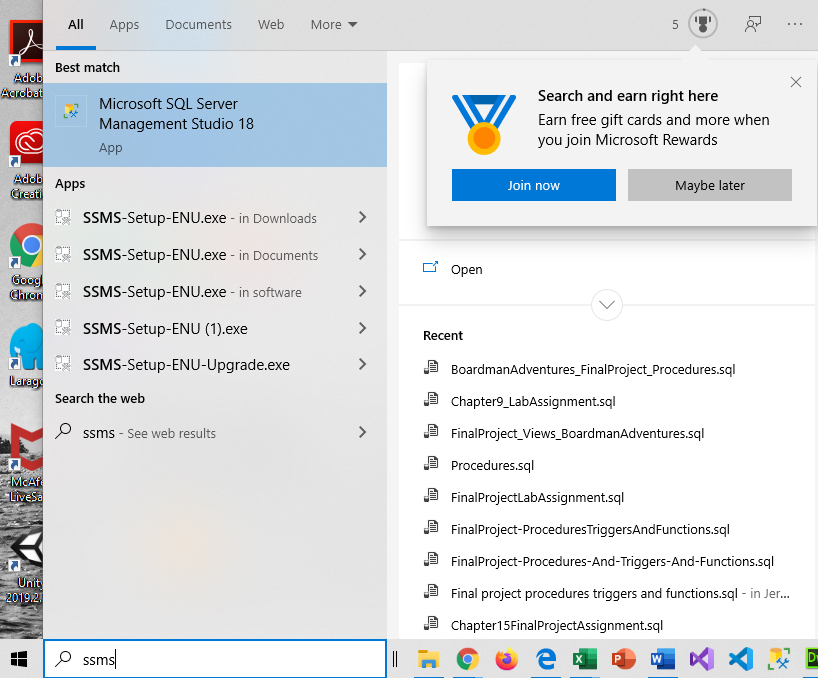
In the Windows Search box, type SSMS or use the menu to find SSMS (If you use the menu, it should be in the Microsoft SQL Server Tools folder).
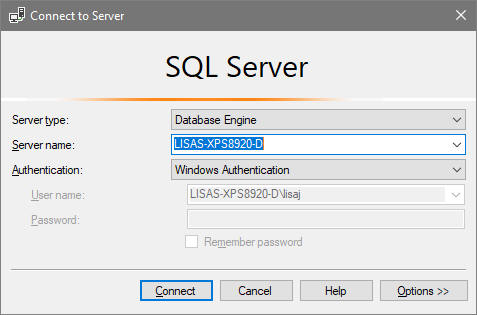
After launching the software, you will see a Connect to Server window similar to the one below:
You should use Windows Authentication to connect (that will use your windows login information). To enter SSMS, just click on the Connect button. You should note the server name is the name of your own personal computer or laptop - it will be different from the example shown below
After connecting to SQL Server, you should see the management studio window with object explorer pane or panel open. We will spend most of our time working with Database Objects.
Problems may include not being able to use Windows Authentication to connect, SQL Server isn't running, not being able to use remote connections (which you don't need in this class). NOTE: I did not encounter any of these problems and I do not think you will encounter them either, but just in case, I have posted solutions to the problems.
In order to use SSMS, the SQL database server must be running. To verify that it is running,
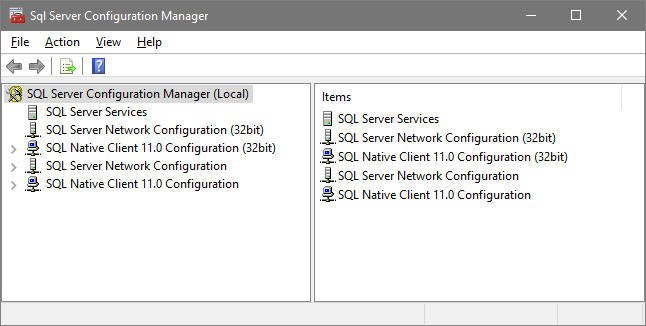
1. Launch the SQL Server Configuration Manager (you may need to run it as an administrator - Right click, More, Run As Administration)
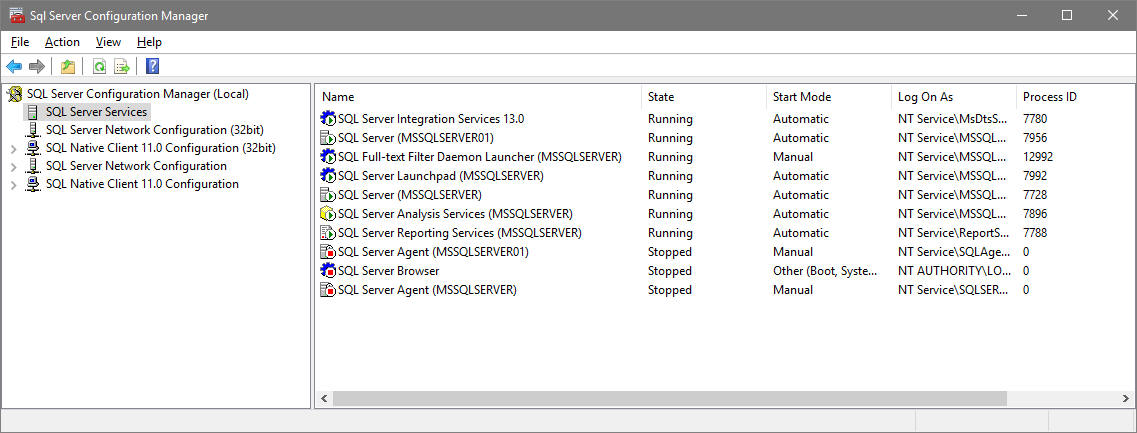
2. Verify that the SQL server is running by selecting SQL Server Services in the left-hand panel. In the right-hand panel, you should see SQL Server (MSSQLSERVER) or SQL Server(SQLEXPRESS) with a state set to Running and a start mode of automatic. If the state is NOT running, right click on the SQL Server entry in the right pane and select Start from the menu (you will note that the menu lets you pause, restart and stop the service in addition to starting the service)
3. If you want remote connections, then TCP/IP needs to be enabled (by default it is NOT enabled)
To Enable TCP/IP:
If you could NOT connect to SQL Server using Windows authentication, that means you selected a different option when you installed the software. You will need to uninstall the software and then reinstall it using the correct settings - please refer to the video showing you how to download and install both SQL Server and SSMS: https://youtu.be/31r8E8aY7_M