To see a video demo on task #1(scenarios 1-3), view: https://youtu.be/vOPDLzzBbSw
To see a video demo on task #1(scenario 4), view: https://youtu.be/gvxhJ_kFIUc
To see a video demo on task #2 (all scenarios), view: https://youtu.be/AWSyAqU3aWQ
To see a video demo on task #3 (all scenarios), view: https://youtu.be/69XHzLljKY4
To see a video demo on task #4 (all scenarios), view: https://youtu.be/ThSK1DvzQxQ
1. Launch SSMS, create a new query and enter the comment /* Task 1 */
2. We will need to use the AP database, the Vendors table and the Invoices table. We will start with the select statement we want to use:
USE AP;
SELECT VendorID, VendorName
FROM Vendors
WHERE
VendorID IN(SELECT VendorID FROM Invoices WHERE InvoiceTotal > 5000);
3. Our next step is to create a table variable that stores the data. We will need to declare the table variable with the column names and data types
DECLARE @BigVendors table (VendorID int, VendorName varchar(50));
4. That statement should go below USE AP;
5. Next we want the output from the select to go into the @BigVendors variable instead of displaying it to the screen. We need to modify the select statement a little by adding INSERT @BigVendors before it
INSERT @BigVendors SELECT VendorID, VendorName
FROM
Vendors
WHERE VendorID IN(SELECT VendorID FROM Invoices WHERE
InvoiceTotal > 5000);
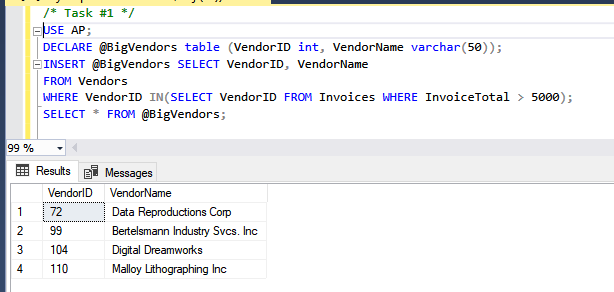
6. At this point, we have a variable called @BigVendors that is storing the 4 rows of data retrieved from the subquery. To see the data in the table varible, you need to add a separate select statement tbelow the one that created the table variable and you need to run the commands together
SELECT * FROM @BigVendors;
The entire script and output are shown below:
7. Save the
script as chapter14-textbook-assignment.sql
8. Comment out the code.
1. The request requires creating 4 variables: MaxInvoice, MinInvoice, InvoiceCount, VendorIDVar
2. To declare the variables, we need to know the data types we are dealing with. InvoiceTotal has a data type of money. We will use that for MaxInvoice and MinInvoice For VendorIDVar we will use int because VendorID uses an int data type For InvoiceCount we are going to use the COUNT function, so we will use the int data type.
We need to enter the variable declaration statements shown below:
USE AP;
DECLARE @MaxInvoice money,
@MinInvoice money;
DECLARE @InvoiceCount int, @VendorIDVar int;
3. Our next step is to set the VendorIDVar equal to the vendorID we want to look up
SET @VendorIDVar = 95;
4. After that, we will place the result of aggregate queries into the invoice variables:
SELECT @MinInvoice = MIN(InvoiceTotal), @MaxInvoice
=MAX(InvoiceTotal), @InvoiceCount = COUNT(*)
FROM Invoices WHERE
VendorID = @VendorIDVar;
5. To view the data in the variables, we need to use print statements.
PRINT 'Number of invoices: ' +
CONVERT(varchar,@InvoiceCount) + '.';
PRINT 'Maximum invoice is $' + CONVERT(varchar,@MaxInvoice,1) +
'.';
PRINT 'Minimum invoice is $' + CONVERT(varchar,@MinInvoice,1) +
'.';
6. After you enter the print statements, run the code (your code and results should look like the example shown below):
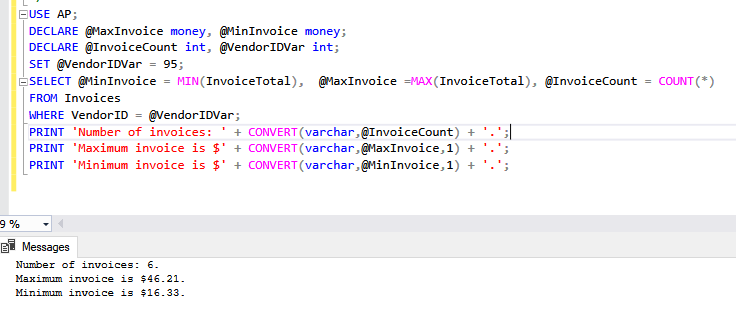
7. Comment out the code and
save your changes
1. There are 2 ways we can approach this problem: 1) We can create the table and use INSERT INTO statements similar to what we did when we created our final projects OR 2) We could use the INSERT INTO command and pull data from the Invoice table into our new table.
2. We are going to use method #2 since it is more in line with what our boss is asking us to do. This is very similar to what we did earlier in the semester, the only difference is the table is global and temporary rather than permanent
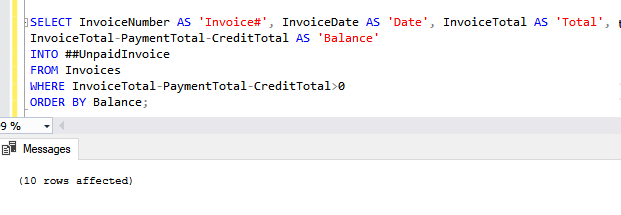
3. Comment out the code and enter the code below to view the data in the table:
SELECT * FROM ##UnpaidInvoice;
4. Comment out the code and save your changes.
1. Enter the code shown below to create the temporary employee table, add records to the table and display data from the table:
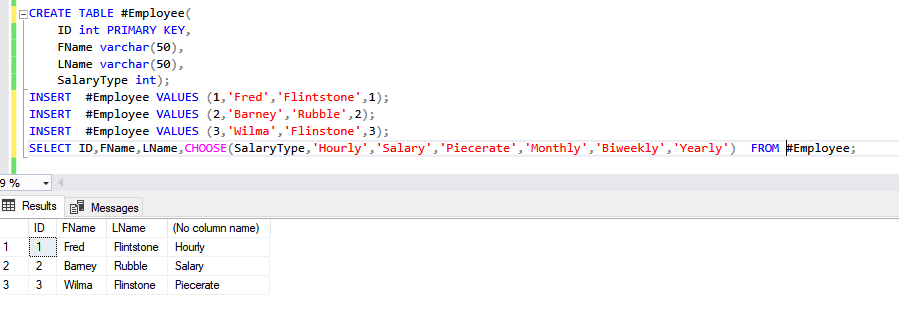
2. Comment out the code and save your changes.
1. Enter the heading /* Task #2 */
2. We will use the IF statement to see if the objects exist and if they do exist, we will delete them
IF OBJECT_ID('InvoiceCopy') IS NOT NULL
DROP
TABLE InvoiceCopy;
IF OBJECT_ID('tempdb..##customers') IS NOT
NULL
DROP TABLE ##customers;
3. Save your changes and comment out the code
1. There are a couple ways we could do this. We will first code it using a row cursor, while loop and if statement.
Here's what is going on in the code below:
@Counter is keeping track of the number of times we have processed the row cursor When we reach 10, the loop is exited, the row cursor is closed and resources for the cursor are deallocated.
The row cursor is created using the following DECLARE and SELECT statements:
DECLARE rowCursor CURSOR FOR
SELECT OrderID,
ProductID, UnitPrice * Quantity AS 'Total Price'
FROM [Order Details]
WHERE UnitPrice * Quantity
>100
ORDER BY 'Total Price' DESC;
Once the cursor is created for a select, you need to open the cursor to use it.
FETCH NEXT FROM is used to retrieve rows
The while loop will process rows as long as @@FETCH_STATUS is zero which means it was successful
The IF statement is being used to break out of the loop when the counter reaches 10
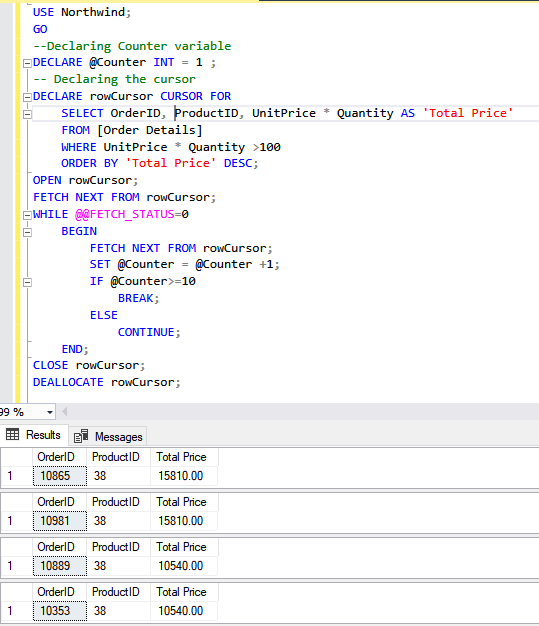
NOTE: THe results are only a partial set of results (you will have 10 rows)
2. Execute the query and comment out the code
1. The query we will create is going to use the list of system databases and the name property to create the backups. To see the listing before we create the query, execute the query shown below:
SELECT * FROM MASTER.dbo.sysdatabases;
You should notice that the name column includes names of all databases in our system. We will be using values in that column to create backups.
2. Create the query shown below (make sure the C drive has a temp folder) The output shown is a partial display of what you should see. Keep in mind this command will take a while to complete.
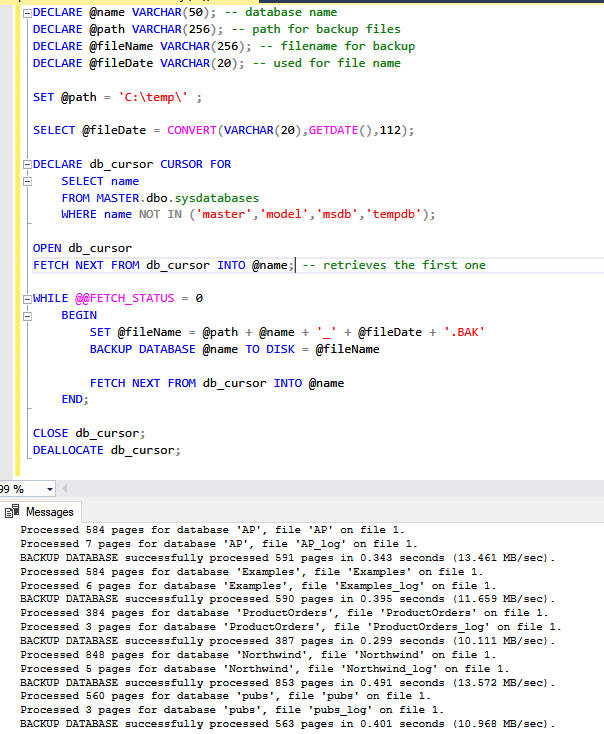
Here’s a summary of what the statements do:
• DECLARE statements - Declare variables used in the code block
• SET\SELECT statements - Initialize the variables to a specific value
• DECLARE CURSOR statement - Populate the cursor with values that will be evaluated
o NOTE - There are an equal number of variables in the DECLARE CURSOR FOR statement as there are in the SELECT statement. This could be 1 or many variables and associated columns.
• OPEN statement - Open the cursor to begin data processing
• FETCH NEXT statements - Assign the specific values from the cursor to the variables
o NOTE - This logic is used for the initial population before the WHILE statement and then again during each loop in the process as a portion of the WHILE statement
• WHILE statement - Condition to begin and continue data processing
• BEGIN...END statement - Start and end of the code block
o NOTE - Based on the data processing multiple BEGIN...END statements can be used
• Data processing - In this example, this logic is to backup a database to a specific path and file name, but this could be just about any DML or administrative logic
• CLOSE statement - Releases the current data and associated locks, but permits the cursor to be re-opened
• DEALLOCATE statement - Destroys the cursor
3. Save your
changes and comment out the code
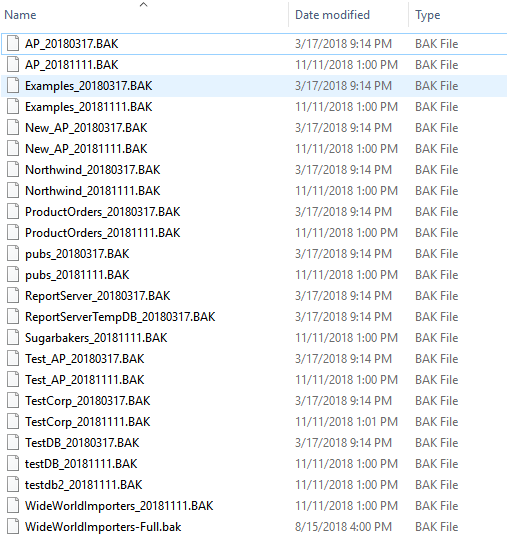
4. If you open the temp folder on your system, you should see each
database that is in the SSMS listed with a .BAK extension
Example of what you should see in C:\temp
1. Enter the following code:
USE AP;
BEGIN TRY
INSERT Invoices VALUES
(799, 'ZXK-799', '2020-05-07', 299.95, 0, 0, 1, '2020-06-06', NULL);
PRINT 'SUCCESS: Record was inserted.';
END TRY
BEGIN CATCH
PRINT 'FAILURE: Record was not inserted.'; PRINT 'Error ' +
CONVERT(varchar, ERROR_NUMBER(), 1) + ': ' + ERROR_MESSAGE();
END
CATCH;
BEGIN TRY
INSERT Invoices
VALUES(122,'abc-123','2020-02-02',599.99,0,200,2,'2020-03-02',NULL);
PRINT 'SUCCESS: Record was inserted.';
END TRY
BEGIN CATCH
PRINT 'FAILURE: Record was not inserted.'; PRINT 'Error ' +
CONVERT(varchar, ERROR_NUMBER(), 1) + ': ' + ERROR_MESSAGE();
END
CATCH;
2. Execute the query. In the messages you should notice the first INSERT generated an error, but the second one ran without any problems. Try... Catch allowed the second invoice to process even though the first had an error.
3 Comment out the code and save your changes.
1. Enter and execute the code below:
USE AP;
--Remove old InvoiceCopy table if one exists
BEGIN TRY
DROP TABLE #InvoiceCopy
END TRY
BEGIN CATCH
PRINT ' The table does not exist'
END CATCH
SELECT * INTO #InvoiceCopy FROM Invoices
DECLARE InvCursor CURSOR
FOR SELECT * FROM #InvoiceCopy
OPEN InvCursor;
FETCH NEXT FROM
InvCursor
WHILE @@FETCH_STATUS = 0
BEGIN
UPDATE #InvoiceCopy SET InvoiceTotal = InvoiceTotal + (InvoiceTotal *
.06)
PRINT 'Total has
been updated'
FETCH NEXT
FROM InvCursor
END
CLOSE InvCursor
DEALLOCATE InvCursor;
2. Save your changes and comment out the code. Look at the
results and messages to see how the data was processed.
1. Enter the heading /* Task #4 */
2. Copy/paste the last query and add @@ROWCOUNT with a print message as shown below:
USE AP;
--Remove old InvoiceCopy table if one exists
BEGIN TRY
DROP TABLE #InvoiceCopy
END TRY
BEGIN CATCH
PRINT ' The table does not exist'
END CATCH
SELECT * INTO #InvoiceCopy FROM Invoices
DECLARE InvCursor CURSOR
FOR SELECT * FROM #InvoiceCopy
OPEN InvCursor;
FETCH NEXT FROM
InvCursor
WHILE @@FETCH_STATUS = 0
BEGIN
UPDATE #InvoiceCopy SET InvoiceTotal = InvoiceTotal + (InvoiceTotal *
.06)
PRINT 'Total has
been updated'
FETCH NEXT
FROM InvCursor
IF @@ROWCOUNT=0
PRINT 'Warning: No rows were updated';
END
CLOSE InvCursor
DEALLOCATE InvCursor;
NOTE: When the InvCursor runs out of rows to process, @@ROWCOUNT will be zero, so in the messages, you should see that the total has been updated and at the end, you should see the rowcount warning.
3. Save your changes and comment out the code.
1. We can use the identity function for the Invoices table, but Vendors is set up a little differently and it won't work there (the vendorID will be automatically generated when the row is added)
USE AP;
DECLARE @MyIdentity int, @MyRowCount int;
INSERT
Vendors (VendorName, VendorAddress1, VendorCity, VendorState,
VendorZipCode, VendorPhone, DefaultTermsID, DefaultAccountNo)
VALUES
('Peerless Binding', '1112 S Windsor St', 'Hallowell', 'ME', '04347',
'(207) 555-1555', 4, 400);
SET @MyIdentity = @@IDENTITY;
SET
@MyRowCount = @@ROWCOUNT;
IF @MyRowCount = 1
INSERT Invoices VALUES (@MyIdentity, 'BA-0199', '2020-05-01', 4598.23,
0, 0, 4, '2020-06-30', NULL);
ELSE
PRINT 'The
row was not inserted into Invoices';
2. Save your changes
3. Close the file and upload it to the dropbox in Moodle.