Chapter 6 Textbook Assignment
Purpose: Practice creating subqueries and cte queries
To see a video demonstration of task 1, view: https://youtu.be/UziMIjpzM7A
To see a video demonstration of task 2, view: https://youtu.be/-JD7ZlPdUU8
To see a video demonstration of task 3, view: https://youtu.be/2f6Nu_uJs8A
To see a video demonstration of task 4, view: https://youtu.be/rzFKdt0c8gY
To see a video demonstration of task 5, view: https://youtu.be/OGczOd9i3WI
Task #1: Subqueries
Scenario: Our boss would like to see vendors who do not have any invoices.
1. Launch the SSMS and create a new query.
2. Type /* Task #1 */
3. There are 2 ways we can display vendors without invoices: a) use a join or b) use a subquery
Join method:
USE AP;
SELECT Vendors.VendorID, VendorName, VendorState
FROM Vendors LEFT JOIN Invoices ON Vendors.VendorID =
Invoices.VendorID
WHERE Invoices.VendorID IS NULL;
4. Enter and execute the query
5. Comment out the query and enter and execute the following subquery that does the exact same thing!
Subquery method:
a) Find vendors who have invoices
USE AP;
SELECT DISTINCT VendorID FROM Invoices;
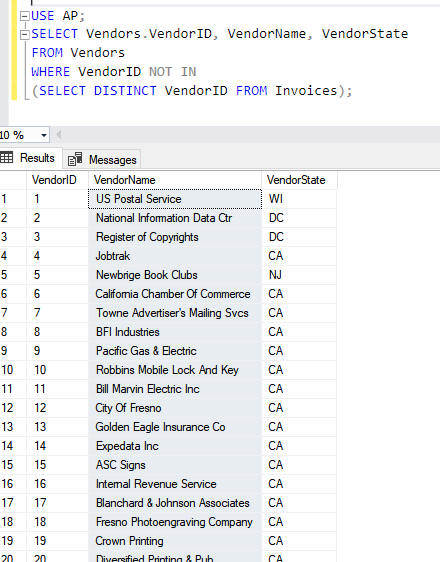
b) Use that SELECT in a WHERE statement with NOT IN
to see which vendors do NOT have invoices.
Modify the query you just entered to the following:
6. Comment out everything
7. Save the file as chapter6-textbook-assignment.sql
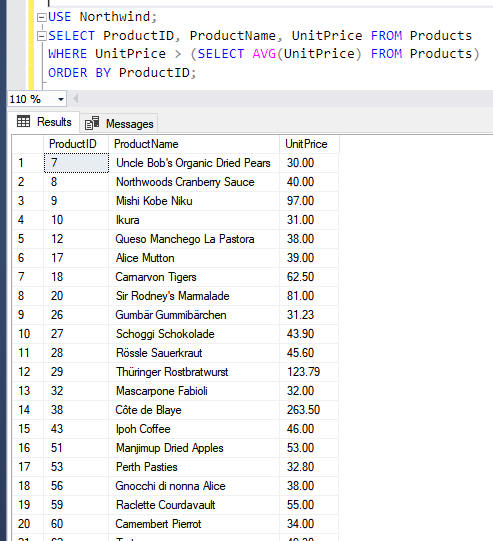
Scenario: Our boss would like us to find all products that have a larger unit price than the average unit price.
1. Step 1: Run a select for the average unit price
USE Northwind;
SELECT AVG(UnitPrice) FROM Products;
2. Step 2: Use that select in a subquery
3. Execute the query, save your changes and comment out the
query
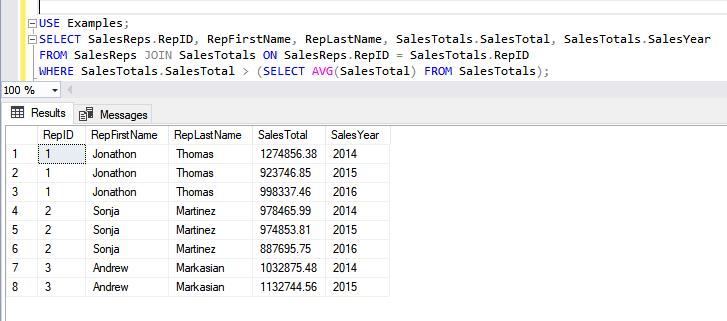
Scenario: Our boss would like to find the salesreps who have sold more than the average. This involves using the SalesReps and SalesTotals tables in the Examples database
1. First we will do a select on the salesrep information
USE Examples;
SELECT SalesReps.RepID, RepFirstName,
RepLastName, SalesTotals.SalesTotal, SalesTotals.SalesYear
FROM
SalesReps JOIN SalesTotals ON SalesReps.RepID = SalesTotals.RepID;
2. Next we will add a subquery in a WHERE statement that looks for reps who have sold more than the average
Task #2 ALL, ANY and SOME subqueries
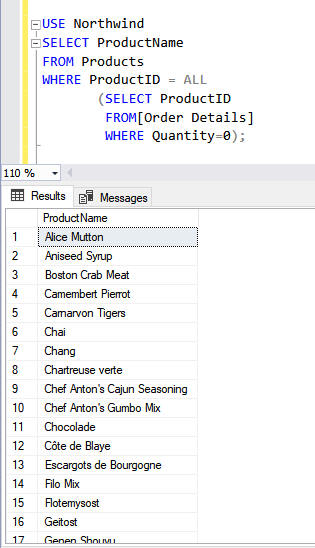
Scenario: Our boss would like us to find all product ID's that have a quantity=0 in the Order Details table
For ALL subqueries, you will need to code it in one step. If you try to run the subquery alone, it will probably show zero results. This will only show results if all the ProductIDs match product IDs in the subquery
1. Enter a heading, Task #2 and comment it out
2. Enter and execute the query shown below
3. Comment out the query.
Scenerio: Our boss would like us to find products that have order quantities greater than 100
1. Since this is similar to the last query, we can copy/paste the previous query and change the WHERE clause in the subquery to Quantity >100 AND change the keyword ALL to ANY.
USE Northwind;
SELECT ProductName, ProductID
FROM Products
WHERE ProductID = ANY
(SELECT
ProductID FROM [Order Details]
WHERE
Quantity>100);
2. Run the query. Since ANY and SOME basically do the same thing - change ANY to SOME and run the query again - you should notice the results are the same.
3. Comment out the query and save your changes.
Task #3 Using Subqueries in SELECT and FROM clauses
So far, we have used subqueries in WHERE clauses which is how they are used most often. They can be used in SELECT, JOIN and FROM clauses too. Subqueries used in SELECTs typically have an aggregate function in the inner select statement
Scenario: Our boss would like us to retrieve the most recent invoice for each vendor.
To accomplish this task, we need:
• DISTINCT Vendor entries to prevent duplicates
• MAX(InvoiceDate) for each vendor – this will require a subquery (SELECT MAX(InvoiceDate) FROM Invoices WHERE Invoices.VendorID = Vendors.VendorID) Since this is a column that will display, we will give the column an alias of [ Most Recent Invoice]
1. Enter the heading Task #3 and comment it out
2. Create the query shown below:
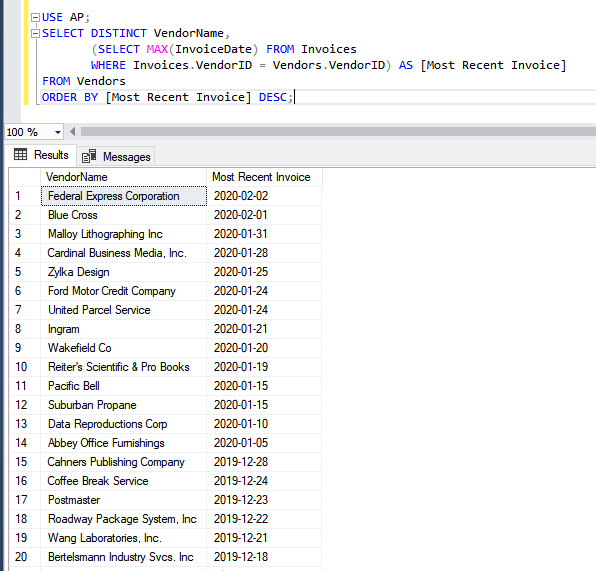
3. Execute the query, comment out the code and save your changes.
Scenario: Our boss would like to know the quantity ordered for each product
1. To break this down, we need a count of the Quantity ordered and we need to show the total quantity next to the product name.
SELECT ProductName
After ProductName, we need to total the Quantity for that product in the Order Details table. This requires a subquery
UnitsOrdered = (SELECT SUM([Order Details].Quantity) FROM [Order Details] WHERE [Order Details].ProductID = Products.ProductID)
Here's the entire query and a portion of the output:
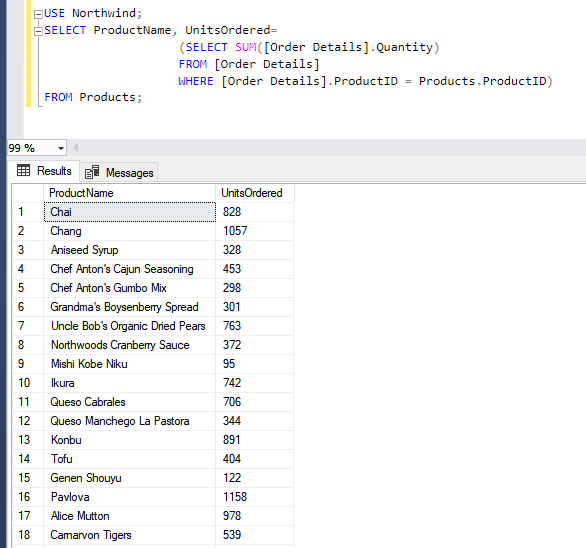
3. Execute the query, comment out the code and save your changes.
Task #4 - Correlated Subqueries and using EXISTS
Correlated subqueries include a subquery that uses data in the outer query (these subqueries are typically in WHERE statements and are similar to self-joins).
Scenario: Our boss would like us to display supplier information for suppliers who have products < $20
1. Enter the heading, Task #4 and comment it out
2. There are many ways to do this, but we decide to use WHERE EXISTS along with a subquery to check if the a product exists for a given supplier and whether or not the unit price is below 20
3. Enter the query below
USE Northwind;
SELECT SupplierID, CompanyName, Phone
FROM
Suppliers
WHERE EXISTS
(SELECT ProductName FROM Products
WHERE SupplierId = Suppliers.supplierId AND UnitPrice < 20);
4. Comment out the query and save your changes
Scenario: Our boss wants to know which vendors and invoices have totals larger than that vendor's average invoice amount. This requires retrieving the vendor information and comparing each vendor invoice total to the average invoice total for that particular vendor.
1. To retrieve vendor information and invoice information, we are going to use the Invoices table in the AP database. Because we are going to do a subquery on that same table, we are going to use a table alias for both queries
Enter the outer query shown below:
USE AP;
SELECT VendorID, InvoiceNumber, InvoiceTotal
FROM
Invoices AS Inv_Main
ORDER BY VendorID, InvoiceTotal;
2. This outer query will give us everything we need EXCEPT it isn't comparing the InvoiceTotal to that Vendor's average InvoiceTotal For that, we need another query that will calculate the average invoice total
Enter the query shown below:
SELECT AVG(InvoiceTotal)
FROM Invoices AS Inv_Sub
3. Finally, we need to put the 2 select statements together and compare the vendors invoice total to the calculated average for that vendor. Enter the correlated subquery that combines the 2 previous queries as shown in the example below
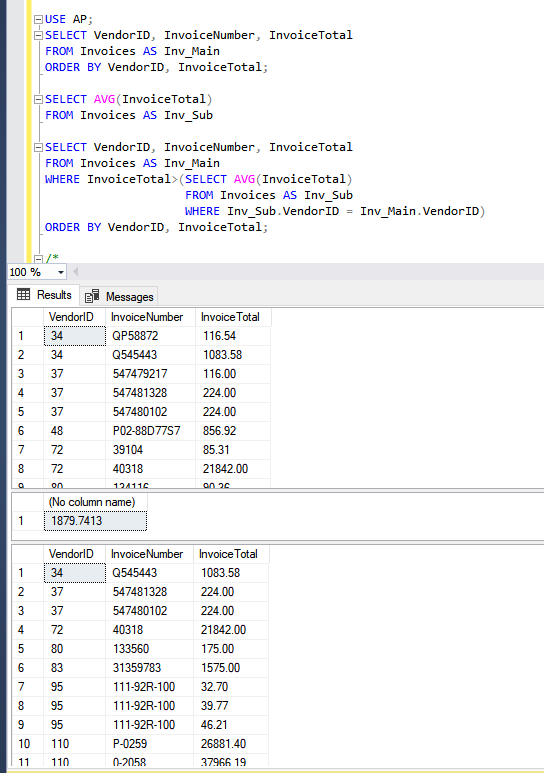
4. Run the query and comment out everything. Save your changes.
Task #5 - Working with CTE (Common Table Expressions)
Scenerio: You have a CTE non-recursive table and you want to pull data from it. The CTE table is named Summary and includes data from Vendors and Invoices. The VendorState and VendorName are from the Vendors table. The total Invoice amount comes from the Invoices table. Once the CTE table has been created, you need to display the Vendor State and Vendor Name for Invoices that are > 1,000
1. Enter the heading Task #5 and comment it out.
2. Enter the query shown below
USE AP;
WITH Summary AS (
SELECT
VendorState, VendorName, InvoiceTotal
FROM
Invoices JOIN Vendors ON Invoices.VendorID = Vendors.VendorID
)
SELECT Summary.VendorState, Summary.VendorName, Summary.InvoiceTotal
FROM Summary
WHERE Summary.InvoiceTotal > 1000
ORDER BY
Summary.VendorState;
3. Run the query and comment out the code.
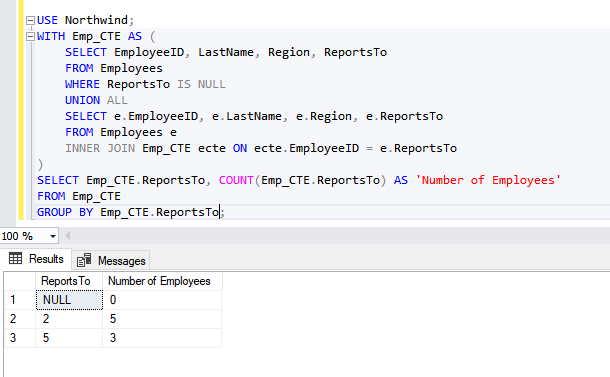
Scenario: You need to know how many employees report to each manager. Both manager and employee information are in the Northwind, Employees table You decide to use a recursive CTE that will select Employee information for people with no manager and for people that have managers. This information will be combined into a table and then you can extract the manager numbers and total up the employees using the CTE table results
1. Enter the query shown below:
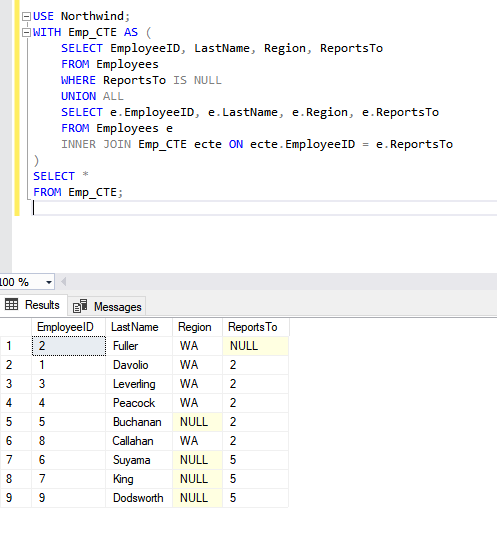
The output is giving us the employees and their managers. What we really need is the total number of employees for each manager. To get that, we need to count who each employee is reporting to.
2. Comment out the query, then copy/paste it and modify the third select (the one that using the CTE output) as shown below. By adding the COUNT aggregate along with GROUP BY, we can get the total number of employees for each manager
3. Save your changes and submit the assignment to the dropbox.