
By the end of this tutorial, you will be able to:
Link and embed different multimedia files and formats
Explain how sound files and video file formats affect file size and convert audio and video files into different formats
You can add multimedia to a web page by adding links to the media files or by embedding the media files into the page (making them part of the page itself).
Embedding media files into pages increases the time it takes to load the page.
Adding links to media files doesn't affect page load time
We will be adding multimedia as links and by embedding files
Amplitude and frequency make up a sound wave. Amplitude affects how loud the sound is ( the higher the amplitude the louder the sound). Frequency affects the pitch of the sound (the higher the frequency, the higher the pitch).
To create your own sound file, you need a computer with a sound card, speakers and a microphone.
There are 4 things that affect the quaility and size of a sound file:
When recording sound samples, the computer can use different time intervals (this is referred to as the sampling rate). Sampling rates are measured in kilohertz(kHz) The more recordings per second, the higher the kilohertz and the higher the quaility. Higher quality means larger files.
Sample resolution affects sound quality The higher the resolution, the better the quality.
There are 3 resolution values you can choose from:
8 bit
16 bit (very good quality with a smaller size - best choice for recording sound)
32 bit (best quality, but the file size is very large).
There are many different software programs on the Internet that will help you create and edit sound files. Many of these programs are considered shareware or open-source. Shareware allows you to use the software for a specific period of time. Open-source is completely free. One excellent sound editor that is open source is Audacity. You can download it from:https://www.audacityteam.org/
Basically this refers to creating a file in monaural sound or in stereo. Stereo sound files provide better sound, but the files will be 2X the size of the mono sound files.
Sound files can be delivered as streaming media or non-streaming media.
Streaming media files play as they are downloaded. Non-streaming don't play until they are fully downloaded.
Most of the sound file formats listed below can be created as either streaming or non-streaming.
Whether you create your own sound file or use one created by someone else, you should be aware of the different sound formats on the Internet. The format the sound file is saved under will affect the software you will need to play the file. The table below shows the different sound formats that can play on the web.
The three formats that are considered web standards for sound include: .mp3, .wav, .ogg
Popular Sound Formats on the Internet |
||
|---|---|---|
| Format | File Extension | Features |
| 1. MP3 files | .mp3 | - Compressed music files at near-CD quality allow
for easy transmission over the Internet. - These files are easy to create and upload. - Derived from MPEG video format - Most popular format on the Internet Problem: Artists aren't getting money from CD purchases when people upload/download their music |
| 2. Wav | .wav | - 8-bit or 16-bit resolution - stereo or mono channels - variety of sampling rates - variety of compression schemes - one of the most common formats |
| 3. OGG | .ogg | - high quality - used for streaming audio and video - FREE, open source (you can download and use it) |
| 4. RealAudio | .ra | - First to use the streaming media format - Smaller than au or wav files (quality isn't quite as good, but they transfer much faster) - very popular format on the Internet |
| 5. AIIF/AIFC (audio interchange format) |
.aiff or .aif | - 8-bit or 16-bit resolution - stereo or mono channels - variety of sampling rates - must be downloaded and then played |
| 6. Au | .au | - 8 - bit resolution - 8 kHz sampling rate - mono channel - must be downloaded and then played - used on UNIX workstations |
| 7. MIDI | .mid | - Contain instructions on how to produce music. These instructions include what instrument to use, what notes to play, how long to play the notes, how loud to play them etc. (These files are like mini musical compositions). The .mid file format is the basis for professional music sequencing software. In order to create/listen to this format, you will need special software. For more information on midi files/software, see http://www.midi.org/ |
| 8. SND | - Used on Macs for creating sound - Not widely supported on the Internet |
|
| 9. M4A files | .m4a | Mpeg4 audio file. (Mpeg4 is compression is used for audio and video). M4A files include a variety of audio types including song, audio books and podcasts. |
To use a sound file created by someone else, you need to make sure that it is a royalty free, open source file. If it is a copyrighted sound file, you CANNOT use the file in your web page! It is also illegal to make a digital recording from a CD and place the recording on the Internet for public access.
To find sound files, you can do a search on the type of file AND mp3
Example: chimes AND mp3
If you find and download files, make sure you virus check the files before you open them.
There are websites that also contain freeware (or royalty free) sound files. Some of the sites include:
Once you find a file you want to download, right click on the link and save the file to your drive. MAKE SURE you virus check the files before you use them!
There are 2 methods you can use to add sound to a web page - you can include a link to the sound file (giving the user the option of listening or not listening) or you can embed the sound into your page.
You create a link to a sound file just like any other link. In the text displayed, you should indicate the size of the sound file and the format it was saved under. If you use mp3, all web browsers should be able to play the sound and you will see a playback window display. If you use a format the browser doesn't recognize, the file will automatically download to the user's system.
Example: meditation music (mp3 format, 11.2MB)
Code used for the link displayed above:
<p>Example:<a href="media/relaxing-meditation.mp3">meditation music</a> (mp3 format, 11.2MB)</p>
When you embed a sound file, it becomes part of the page. You can set different properties that affect whether it plays when the page is displayed, how long it plays etc.
When a user displays a page with embedded sound, the web browser will check for software needed to listen to it. If the browser has the correct software, a control box will display and the music can be played at the location the sound file was embedded.
The HTML 5 tag to embed audio is <audio>
The types of sound files currently recognized with the <audio> tag include: MP3, WAV and OGG. Playing sound files back in the browser may require plug-in software that you have to install (normally, your browser will let you know if you need a plug-in). If you don't have the correct software, you can't play the file. To alleviate the problem, you should use several different source files within the audio tag, that way if the browser cannot play back the first file type, it will try the second one, and if that doesn't work, it will try the third file type.
Syntax:
<audio controls>
<source src="media/name
of file.mp3" type="audio/mp3">
<source src="media/name of file.ogg"
type="audio/ogg">
<source src="media/name of file.wav"
type="audio/wav">
Your browser does not support the audio element.
</audio>
The controls attribute adds controls to the embedded sound file (play, pause, volume etc.)
The controls attribute can be coded as shown above OR you can code: controls="controls"
You need at least 1 source element to tell the browser where the audio file is located and what type of file it is. It is best practice to have an audio file in the 3 formats recommended for the web and to use 3 source tags. The browser will use the first recognized format it finds.
Attributes for the <audio> element are shown in the table below:

For the loop and autoplay attributes, you can code them simply as autoplay and loop (you do NOT need to enter loop="loop" or autoplay="autoplay")
Example:
<audio controls loop>
<source src="horse.ogg"
type="audio/ogg">
<source src="horse.mp3"
type="audio/mpeg">
Your browser does not support the audio element.
</audio>
For more information, go to: https://www.w3schools.com/html/html5_audio.asp
Example:
NOTE: The example is a short section of the song (not the entire song)
Syntax:
<audio controls>
<source src="media/Bob Marley -
Three Little Birds.mp3" type="audio/mp3">
<source src="media/Bob Marley - Three Little Birds.ogg" type="audio/ogg">
<source src="media/Bob Marley - Three Little Birds.wav" type="audio/wav">
<a href="media/Bob Marley - Three Little Birds.mp3">Your browser does not support the
audio tag - click here to play.</a>
</audio>
Ogg Vorbis is an open-source, unpatented, royalty free audio compression format. It is roughly comparable to other formats used to store and play digital music, such as MP3, VQF, AAC, and other digital audio formats.
Because Ogg Vorbis is open source, you can play OGG files on a wide variety of multimedia players.
1. What does "Ogg Vorbis" mean?
Ogg is the name of Xiph.org's container format for audio, video, and metadata. Vorbis is the name of a specific audio compression scheme that's designed to be contained in Ogg.
2. Does Vorbis completely replace MP3, or is it just a complementary codec?
"Ogg Vorbis has been designed to
completely replace all proprietary, patented audio formats. That means that you
can encode all your music or audio content in Vorbis and never look back."
NOTE: A codec is a device or computer program for encoding and decoding a
digital data stream or signal.
3. Advantages of using OGG include:
You can use software apps, like Audacity, to convert files into different formats or you can use Internet-based applications like CloudConvert
a) CloudConvert: If you have a fast Internet connection and are using Google Drive or the Dropbox app, you can put any audio or video file on either of the drives and have it converted via the cloud. You can also upload the files you want to convert and then download the converted file. CloudConvert allows up to 25 conversions per/day for free.
For a list of audio files that can be converted, go to: https://cloudconvert.com/audio-converter
To go directly to the main conversion page that is used for video, audio, images etc, go to: https://cloudconvert.com/
NOTE: I have used this site many times to convert files - here's a link to a video showing how to upload and convert sound files: https://youtu.be/U823Uez2ajM
b) App downloads: For audio, the Audacity product I mentioned earlier is easy to use and free (that is the app I use to create audio files, edit audio files and I also use it to convert audio into different formats).
It is available for PCs, Macs and Linux. Go to: https://www.audacityteam.org/, select Download and then select your operating system. The software is easy to use, just open your audio file within the program, use the file menu, export command and save it into a different format.
NOTE: There are some versions of Audacity that require an additional DLL to export to mp3 files, if you get an error when exporting MP3 and it says you need Lame_v3.99.3.dll, you can download the following executable file: Lame_v3.99.3_for_Windows.exe
For playback, the VLC media player handles most video and audio and it is free. You can download it from: http://www.videolan.org/ ( When I downloaded the software, there was a Firefox plugin that automatically installed and there was also an activeX plugin).
A video file converts a continuous stream of images into digital format. You can create video files from a wide variety of mobile devices and digital recording devices. You can also create video clips using computer animation software. For more on video editing software, go to: https://www.tomsguide.com/best-picks/best-video-editing-software (most of the software listed is below $100.00). I use Wondershare Filmora for video editing. I paid for the software once and the price includes unlimited updates. I have it installed on 2 machines and it is extremely easy to use and very inexpensive.
Video clips tend to be rather large, so you should use them sparingly. They can be embedded into a page or you can include a link to the video. Before you add a video clip to a page, you should be familiar with how they are created and the different file formats available:
Video files are made up of frames which contain individual images. When the video is played, the frames are displayed in sequence giving the illusion of motion. The number of frames you display in a second is called the frame rate. The more frames displayed in a second, the higher the quality and the larger the size. By reducing the frame rate, you can reduce the size of the video file.
Another way to decrease the size of the video clip is to compress the file. When the file plays it will be automatically decompressed. The technique used to compress/decompress video files is referred to as codec. There are many different types of codecs - if you have video editing software, you will be able to select from many different options.
The video editing software you select should let you manipulate frame rates, codecs, frame size and video color (grayscale videos are smaller than color).
There are 6 video formats you may see on the Internet:
1. AVI (Audio Video Interleave) - nonstreaming video. Can be played by most media players and plug-ins. Files have an avi extension. AVI files tend to be large because they use less compression.
2. MP4 or MPEG-4 (Moving Pictures Expert Group) - nonstreaming video. Files have an mp4 extension. Can be played in most media players. MPEG-4 compresses the file so it is smaller. MPEG is the standard format for the Internet. MPEG-4 videos are packaged in a container known as MP4. MP4 is the current standard on the Internet.
3. WMV (Windows Media) - streaming video. Popular format because it has good compression and good quality. Files have a .wmv extension.
4. MOV (QuickTime) - streaming video. Files have a .mov extension. QuickTime movies are used for Virtual Reality movies where you move the mouse and the screen pans in the direction of the mouse. They are also used for regular movies too. MOV files are high-quality and will use more memory when playing. The QuickTime player is also required to view the movie.
5. RealVideo - streaming video. Displays live video over low- and high-bandwidth connections. The RealPlayer software is required to view the movie.
6. Ogv video - free, open source format that is supported in most video players. Videos have an extension of .ogv; however, some browsers and players don't recognize .ogv You have to rename the file and change the extension to .ogg Once you do that, the video will play in apps that recognize OGG.
7. WebM - video file format intended primarily for royalty-free use in the HTML5 video tag. All users are granted a worldwide, non-exclusive, no-charge, royalty-free patent license. The project is sponsored by Google Inc. (the format uses the Vp8 video codec and the vorbis audio codec). Videos have an extension of .webm
The 3 formats that are considered web standards include: mp4, webm, and ogv
You can create a link to a video file just like any other link. In the text displayed, you should indicate the size of the file and the format it was saved under. It is a good idea to save the video under different formats and provide links to them, that way the person viewing the page will be able to playback one of the video formats provided.
Example: Wildlife ( 25mb, wmv format) or Wildlife (24mb, ogg format)
NOTE: Both video files are online; however, you will only see the video playback in the browser if proper software and plug-ins have been installed.
HTML Syntax for the links displayed above is shown below:
<a href="media/Wildlife.wmv">Wildlife ( 25mb, wmv format)</a>
or
<a href="media/Wildlife.ogg">Wildlife (24mb, ogg format)</a>
When you embed a video file, it becomes part of the page. The new <video> element in HTML 5 is a vast improvement over past versions and makes it very easy to add video to pages.
All browsers support the mp4 format, so I would include that format as a source along with webm and one additional format of your choice (depending upon who you think will be viewing the video). The browser will try to play the first video listed and if that doesn't work, it will use the second video listed, if that doesn't work, it will try using the third video listed.
Syntax for the HTML 5 <video> element:
<video width="#pixels" height="#pixels" controls>
<source src="media/name of video clip.mp4" type="video/mp4" />
<source src="media/name of video clip.webm" type="video/webm" />
<source src="media/name of video clip.ogg" type="video/ogg" />
Text or link to
display if the video cannot play
</video>
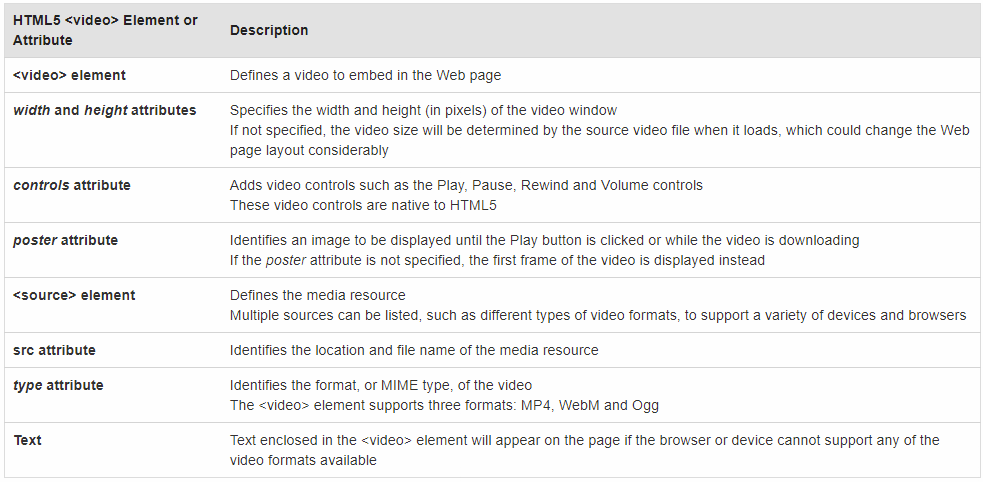
There are several attributes you can add to the <video> element. Controls can be coded as shown above OR you can enter conrols="controls". The poster attribute will display a graphic while the video downloads. It is coded using poster="media/graphicName.jpg"
The graphic below summarizes the different attributes you can use with the <video> element:
Live Example (this takes a while to load - it won't play until it is loaded):
<video controls style="width: 836px; height: 471px">
<source src="Wildlife.mp4" type="video/mp4" />
<source src="Wildlife.webm" type="video/webm" />
<source src="Wildlife.wmv" type="video/wmv" />
Your web browser doesn't support html 5 video
</video>
For more information, go to: https://www.w3schools.com/html/html5_video.asp
If you have a video editing program, you can save a video into different formats. You can also use Cloud Convert to save your video to a different format. For a list of files that can be converted, go to: https://cloudconvert.com/video-converter.
You can choose to upload your video, convert it, and download the result, OR you can put your video on google drive and convert it from there.
To see a video showing you how google drive and cloudconvert work, watch: https://www.youtube.com/watch?v=d8S9t0GF-Pk For more information on how to use Google Drive, watch: https://www.youtube.com/watch?v=-HU9Z5gtQVk
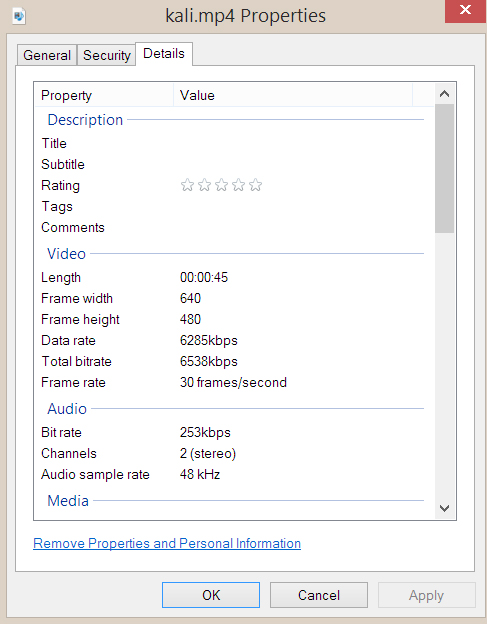
To code the width and height of the video playback, you need to know the dimensions in pixels. If you have a Windows machine and the file is saved in a windows video format (MP4 or WMV) , you can right click the file, go into properties and then click on the details tab - the window will tell you the dimensions.
If you want to embed your own or someone else's youtube video, you need to use the <iframe> element.
Syntax:
<iframe width="pixels" height="pixels" src="https://www.youtube.com/embed/XGSy3_Czz8k"></iframe>
NOTE: If the license prohibits this, when you try clicking the video to play it "live" you will see a license restriction message.
Live Example showing a youtube video:
The code used was copied from YouTube's Embed option:
<iframe width="560" height="315" src="https://www.youtube.com/embed/qP-7GNoDJ5c?si=mGNUCXoDLPKcqGOg" title="YouTube video player" frameborder="0" allow="accelerometer; autoplay; clipboard-write; encrypted-media; gyroscope; picture-in-picture; web-share" allowfullscreen></iframe>
To copy the iframe information, click the Share command below the video, then scroll left to find Embed and click on it. You will see the code you can copy/paste into your page.
For more on the <iframe> element, go to: https://www.w3schools.com/tags/tag_iframe.asp
For more on embedding from youtube, view:
https://www.w3schools.com/html/html_youtube.asp
The <track> tag specifies text tracks for the <audio> and <video> tags
The element is used to specify subtitles, caption files or other files containing text, that should be visible when the media is playing.
The <track> tag goes INSIDE the <audio> and <video> tags and can specify the type of text track, the title of the track, the web URL and the language used.
Syntax: <track kind="value" label="text" src="URL" srclang="language_code" >
For kind, the value can be: captions, chapters, descriptions, metadata or subtitles
Example from W3C Schools:
<video width="320" height="240" controls>
<source
src="forrest_gump.mp4" type="video/mp4">
<source
src="forrest_gump.ogg" type="video/ogg">
<track
src="subtitles_en.vtt" kind="subtitles" srclang="en" label="English">
<track src="subtitles_no.vtt" kind="subtitles" srclang="no" label="Norwegian">
</video>
NOTE: For the src, all the files end in .vtt because tracks are formatted in the WebVTT format. WebVTT stands for Web Video Text Tracks.
Here's another example from HTML5 Demos (downloaded from GitHub). You can view the demo live at: Video with English Tracks
The code used for the video is shown below:
<video width="400" autoplay controls>
<source
src="Google_Developer_Stories.webm" type='video/webm; codecs="vp8, vorbis"'>
<track label="English subtitles" kind="subtitles" srclang="en"
src="video-subtitles-en.vtt" default>
Your browser does
not support the video tag
</video>
The subtitles have been added to the video using the track element. Unfortunately, the control that would let you select and display the subtitles has NOT been implemented yet on the web.
IMPORTANT: For those of you pursuing certification exams, how <track> is used is something you should remember because it is part of a test objective and you may see a question on it!