By the end of this tutorial, you will be able to:
Link and embed different multimedia files and formats
Explain how sound files and video file formats affect file size and convert audio and video files into different formats
1. Open the CIT180 folder. Create a new folder and name it Lesson7
2. Open the Lesson7 folder and create a media folder
To see a video demonstration, watch: https://youtu.be/JH2vjcx9hFc
1. Open the CIT180/Lesson7 folder
2 Download the following page into your CIT180/Lesson7 folder: zoo-multimedia.html IMPORTANT: All downloads should be done by right clicking the link and selecting Save As from the menu (The Save As command will vary a little depending upon what you are saving. If it is an image, it may say Save Image As, if it is a page, it may say Save Page As etc. Different browsers may also show slightly different variations too). You need to make sure the format of the fileis not changed when you download it.
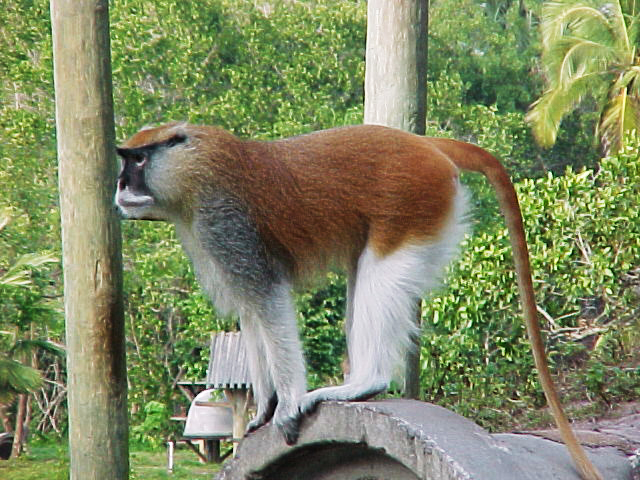
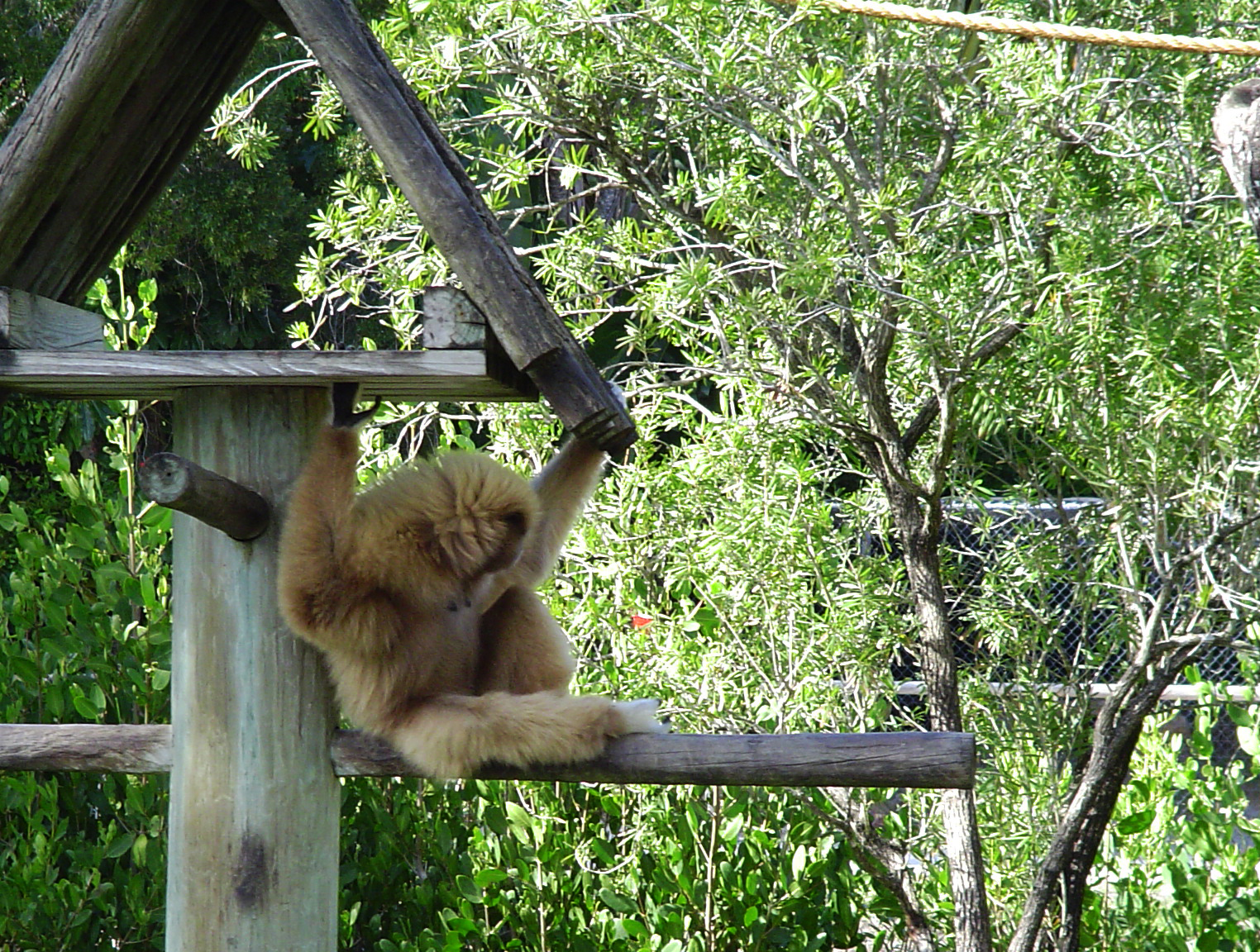
3. Download the following image files into your CIT180/Lesson7/media folder: jungle-background.jpg, patas-monkey.jpg, patas-monkey-thumbnail.jpg, White-handed-gibbon.jpg, and White-handed-gibbon-thumbnail.jpg
4. Download the following sound files into your CIT180/Lesson7/media folder: gibbon.mp3, gibbon.wav, gibbon.ogg, patas.mp3, patas.ogg and patas.wav
5. Open zoo-multimedia.html for editing. The page has an internal stylesheet for formatting - it is using the flexbox layout.
6. Below the <h3>Patas Monkey</h3> element in the audio section, enter the code shown below to embed the sound files. We are adding all three sound files so the web browser can use whichever one it recognizes to playback the sound.
<section>
<h2>Audio...</h2>
<h3>Patas Monkey</h3>
<audio controls>
<source src="media/patas.mp3" type="audio/mp3">
<source src="media/patas.ogg" type="audio/ogg">
<source src="media/patas.wav" type="audio/wav">
</audio>
7. Below the <h3>White Handed Gibbon</h3> element in the audio section, add 3 links to the sound files you downloaded (see code below)
<section>
<h2>Audio...</h2>
<h3>Patas Monkey</h3>
<audio controls>
<source src="media/patas.mp3" type="audio/mp3">
<source src="media/patas.ogg" type="audio/ogg">
<source src="media/patas.wav" type="audio/wav">
</audio>
<h3>White Handed Gibbon</h3>
<p><a href="media/gibbon.mp3">White Handed Gibbon
(mp3)</a></p>
<p><a
href="media/gibbon.ogg">White Handed Gibbon (ogg)</a></p>
<p><a href="media/gibbon.wav">White Handed Gibbon
(wav)</a></p>
8. Save your changes and view offline in at least two different web browsers
To see a video demonstration, watch: https://youtu.be/QudoXaokH14
NOTE: The video shows you how to find the dimensions of the video and how to determine a smaller size for display. The video also shows you how to determine the file size of the video for display in the links AND how to find and modify iframe information for youtube videos that you want to embed into your pages.
1. Using the zoo-multimedia.html file, we will be embedding videos of primates and linking to primate videos. Download the following videos to your CIT180/Lesson7/media folder:
NOTE: Even though gibbon-monkey.ogg doesn't end with ogv, it is still an ogg video file :)
2. We are going to enter code for an embedded video file and linked video files
a) Embedding a file:
Add the <video> element shown below:
<section>
<h2>Video...</h2>
<h3>Patas
Monkey</h3>
<video controls style="width:320px;
height:240px;">
<source src="media/patas-monkey.mp4" type="video/mp4">
<source
src="media/patas-monkey.ogg" type="video/ogg">
<source
src="media/patas-monkey.webm" type="video/webm">
Your browser doesn't support HTML 5 video.
</video>
Save your changes and view the page offline in a web browser (with all 3 videos included, the video should display and you should be able to play it no matter what browser you are using).
b) Linking files:
We will link 3 video files for the White Handed Gibbon (see below):
<section>
<h2>Video...</h2>
<h3>Patas
Monkey</h3>
<video controls style="width:448px;
height:336px;">
<source src="media/patas-monkey.mp4" type="video/mp4">
<source
src="media/patas-monkey.ogv" type="video/ogg">
<source
src="media/patas-monkey.webm" type="video/webm">
Your browser doesn't support HTML 5 video.
</video>
<h3>White Handed
Gibbon</h3>
<p><a
href="media/gibbon-monkey.mp4">White Handed Gibbon (mp4, 10.8 MB)</a></p>
<p><a href="media/gibbon-monkey.ogg">White Handed
Gibbon (ogg, 18.1 MB)</a></p>
<p><a href="media/gibbon-monkey.webm">White Handed
Gibbon (webm, 6.3 MB)</a></p>
</section>
3. Save your changes. View the page offline in IE and Safari , Chrome, or Firefox If you don't see the embedded video or it doesn't play correctly, something was miskeyed or something is missing (you may have it looking in the wrong folder for the video).
4. There is some room below the audio section for us to embed a youtube video. Add the iframe code that is boldfaced below (it will go in the audio section). You will notice the height and width are omitted from the iframe element. If you omit the size, the video will adjust to the size of your container (it will not display larger than the width we specified for the section.) NOTE: The opera web browser doesn't display the iframe video very well, the others look fine (this could change by the time you are working on this :)
<section>
<h2>Audio...</h2>
<h3>Patas Monkey</h3>
<audio controls>
<source src="media/patas.mp3" type="audio/mp3">
<source src="media/patas.ogg"
type="audio/ogg">
<source src="media/patas.wav" type="audio/wav">
</audio>
<h3>White Handed Gibbon</h3>
<p><a href="media/gibbon.mp3">White Handed
Gibbon (mp3)</a></p>
<p><a href="media/gibbon.ogg">White Handed Gibbon
(ogg)</a></p>
<p><a href="media/gibbon.wav">White Handed Gibbon (wav)</a></p>
<h3>White Handed Gibbon Swinging and Singing</h3>
<iframe width="100%" height="auto" src="https://www.youtube.com/embed/R1i4GvdqdPc" frameborder="0" allow="accelerometer; autoplay; encrypted-media; gyroscope; picture-in-picture" allowfullscreen></iframe>
</section>
NOTE: The iframe video is different from the video demonstration because the original video is no longer available.
5 Save your changes. To test the iframe, you need to be connected to the Internet (you can still view offline, but the content is coming from youtube, so you need to be connected).
6 Correct any errors and close the file.
To see a video demonstration, watch: https://youtu.be/yigT9dkhpeI
1. FTP the Lesson7 folder and all it's contents to the CIT180 folder in your directory on the server. The Lesson7 folder should contain:
1) zoo-multimedia.htm 15 points
2) media folder 5 points
The media folder should contain the following sound files: patas.mp3, patas.wav, patas.ogg, gibbon.mp3, gibbon.wav, gibbon.ogg
The media folder should contain the following video files: patas-monkey.mp4, patas-monkey.ogg, patas-monkey.webm, gibbon-monkey.mp4, gibbon-monkey.ogg and gibbon-monkey.webm
The media folder should contain the following graphic files: jungle-background.jpg, patas-monkey.jpg, patas-monkey-thumbnail.jpg, White-handed-gibbon.jpg, and White-handed-gibbon-thumbnail.jpg
2. After ftping, you should check the CIT180/Lesson7/zoo-multimedia.html page "live". If there are errors, you should correct them, then transfer the page again and recheck it (remember, when you do this, you need to reload the page in order to see your changes).
3. If you need help, send me an email message with a link to your web page and I will look at it and get back to you