
By the end of this lesson, you will be able to:
Explain how html forms work and create the front end of an html form
Create forms that include text labels, hidden data and appropriate input controls for the data being entered.
Apply CSS to the fieldset, legend, labels and other divisions within the form
Submit form data to a processing script
We will be covering how to create HTML 5 forms. HTML 5 includes limited error handling which we will also be covering; however, most of the error handling done in forms is created using a web programming language like JavaScript or PHP. Forms are typically submitted to a script for processing. You will be submitting forms to a script designed to display the data you submitted (that way you can tell if there are any issues with your form fields).
To see a video demonstration, watch: https://youtu.be/txwWNW4yRVI
1. Open your CIT180 folder and create a new folder named Lesson8
2. Open the Lesson8 folder and create one new folder named media
To see a video explanation of the customer form, view: https://youtu.be/7kwylQrrYHA
1. Download customerForm.html to your CIT180/Lesson8 folder
2. Download runningClub.jpg to your CIT180/Lesson8/media folder
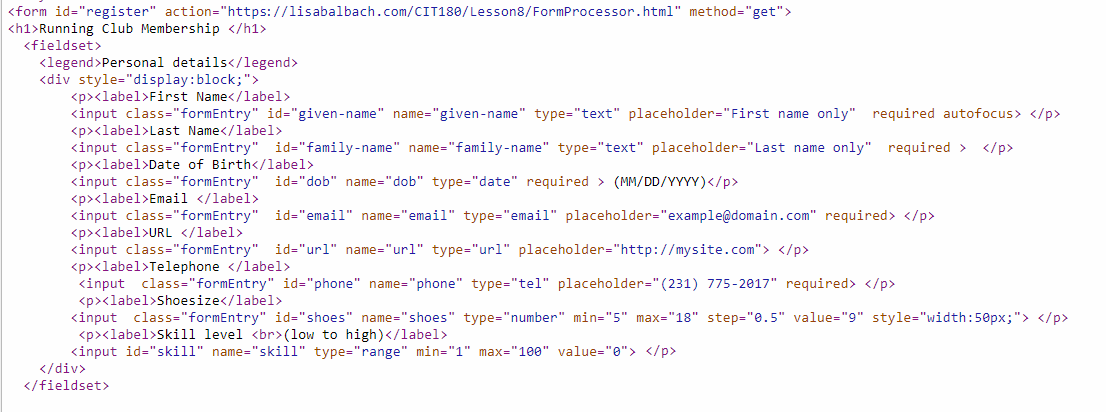
3. Open the customerForm for editing. An internal stylesheet has been created for you. The page title and form tag have also been entered for you. You will need to add all the code shown below after the <h1>Running Club Membership</h1> tag:


4. Save all your changes.
5. View the form offline in several web browsers. You will notice that they don't all display the date the same way, some also omit spin arrows on the number fields.
The form should look like the example shown below (the way text wraps is dependent upon the size of the screen):

To see a video explanation of the mailto customer form, view: https://youtu.be/GVM9cjHMaSQ
1. Open customerForm.html and rename it to: mailto-customerForm.html
2. Change the <form> tag to the following:
<form id="register" action="mailto:lbalbach@nmc.edu" method="post" enctype="text/plain" / >
This will create a mailto form. When it is submitted, the default email
client on your computer will open and display the form data with the email
address filled in. The disadvantage of using this type of form is that an
email client must be configured on the user's computer in order for it to work.
Windows 10 will probably use Windows Mail by default (if you haven't used Windows mail,
it will display a prompt that will allow you to connect to your NMC email).
3. Save all your changes to the page and test the page offline.
1. FTP the Lesson8 folder and all it's contents to the CIT180 folder in your directory on the server. The Lesson8 folder should contain:
customerForm.html 16 points
mailto-customerForm.html 3 points
Lesson8/media folder 1 point (the folder should contain runningClub.jpg)
2. After ftping, check all your pages live to ensure there aren't any errors.
3. If you need help, send me an email message with a link to your web page and I will look at it and get back to you