
CIT190 - JavaScript Programming
Complete the following programming exercises: 35 points
1. Open the CIT190 folder and create the following folders: lesson2
Open the lesson2 folder and create the following folders:
To see the video playlist explaining how to complete the exercises, view: https://www.youtube.com/watch?v=apRVCCmJdnU&list=PLIAyxElqji2Q9CA6FTJIG0MsyiOSIM9p-
Objective: This exercise is designed to give you more practice using JavaScript data types, methods and functions to provide interaction with a page.
1. Download: dataTypes.html by right clicking the link and saving the file into the CIT190/lesson2 folder.
2. Open CIT190/lesson2/dataTypes.html for editing. You will notice that a portion of the page has been completed for you and there is some code missing.
The HTML section is complete (you will not need to make any changes there). The onclick events and buttons have been coded for you. You will need to create several functions in the <script></script> section. The only function that has been coded is the addition function named DoAdd()
Your tasks for this exercise have been broken down into 3 parts:
Part #1- Working with Numbers:
To see a video explaining what you need to do, view: https://youtu.be/apRVCCmJdnU
You need to create:
a) a subtraction function named DoSub
b) a multiplication function named DoMult
c) a division function named DoDiv
NOTE #1: All three functions will be similar to the DoAdd() function that is provided for you
NOTE #2: The setAttribute method is used to change values displayed in the form. You can use it to enter the text or the results of a calculation. In the DoAdd function, it is performing the addition calculation and placing the result of the calculation into the form using the ID "Result"
Syntax: element.setAttribute(attributeName, attributeValue)
Example: document.getElementById("Result").setAttribute("value", Value1 +
Value2);
Part #2: Working with Arrays filled with color:
To see a video explaining what you need to do, view: https://youtu.be/puexGw3luMs
a) You need to create a function called getColor. The HTML that calls the function is shown below:
<p>Enter a number between 0 and 8 and I will show you the
color of the day AND change the background color of the page:</p>
<input
id="choice" type="number" max="8" min="0" onchange="getColor()">
<p
id="color"></p>
There are a couple of things you need to pay attention to in order to create the function:
1. The ID for the input element is "choice"
2.
The getColor() function is invoked (or called) when the number changes AND the
only values allowed for the number are 0 through 8
3. The paragraph
below the input element has an ID set to "color" - this is where the name of the
color they select will be displayed
The purpose of the function is to retrieve an HTML color name from an array of names using the value in "choice" for a subscript After the color name is retrieved, the name should display below the input element AND the background color of the page should change to the color they selected
Example:
b) Create the getColor() function above the </script> tag at the top of the page by:
1. Enter the function name and the opening/closing curly braces. The function will not be passed any data, so you will just use empty parenthesis after the function name
2. Inside the curly braces, create an array of 9 HTML color names. Since they will be the background of the page, you should use lighter colors. To see a list of names, view: https://www.w3schools.com/colors/colors_names.asp There are a variety of ways you can create the array. If you are using subscripts to store the values, remember the first element is a zero
HINT: The easiest way to do this is using an initializer list similar to the example to the right: var cars = ["Saab", "Volvo", "BMW"]; For more information, see: https://www.w3schools.com/js/js_arrays.asp
3. After you create the array, you need to retrieve the user's number choice from the input element in the <body> of the page. Below the array, create a variable to store the number the user entered into the form. Because the number in the form is text, you need to convert it to an integer
Syntax hint: var variableName = parseInt(document.getElementById("idName").value);
YOU NEED TO REPLACE variableName with a real variable name and idName with the ID associated with the HTML input element containing the number, in this case the ID is "choice"
4. After you have retrieved the subscript number, you need to subscript into the color array, rertrieve the color name and display it in the page. This is done using the innerHTML DOM property The innerHTML property targets an area in the <body> section of the page based upon the ID you provide.
Near the bottom of the page, you should see: <p id="color"></p>
That is the area you are targeting with the innerHTML property. You want the color name to display in that element (between the <p> and </p> tags)
Syntax hint: document.getElementById("color").innerHTML = arrayName[variableName from part 3 above];
YOU NEED TO REPLACE arrayName with the real name of your color array and the variable name should be directly above it your code (it is what you did in part 3)
For more information on innerHTML, see: https://www.w3schools.com/jsref/prop_html_innerhtml.asp
5. The last thing you need to code in this function is a statement to change the background color to the color name the user selected. To do this, you need to adjust the style attribute for the page.
Syntax hint: document.body.style.background = arrayName[variableName from part 3 above];
To see more CSS style object properties you can modify using JavaScript, view: https://www.w3schools.com/jsref/dom_obj_style.asp and scroll down to the section on Style Object Properties
Part #3 Changing the text color in the page:
To see a video showing what you need to do, view: https://youtu.be/ZcCKaUV2lkI
a) This final task is actually easier than the others. The HTML input element shown below, will call the changeText() function if the color changes.
<input type="color" id="txtColor" onchange="changeText()">
b) You need to create the changeText() function. Add the function name with empty parenthesis, and an opening and closing curly brace above the closing </script> tag
c) Inside the curly braces, you need to enter a single line of code. The line will be used to retrieve the color value from the input element using the ID and it will set the text color.
Syntax hint: document.body.style.color = document.getElementById("id from input tag").value;
YOU NEED TO REPLACE "id from input tag" with the actual ID in the tag.
3. Save all your changes and test it offline to make sure it works. If it doesn't work, go into the JavaScript console (press F12) to see what the error is. Typical errors are forgetting to include opening or closing braces, forgetting an opening or closing double quote, entering commas instead of semicolons at the end of statements etc.
Objective: To create an external JavaScript file that handles objects you create, document objects and global objects. The page should be connected to an html page that includes an external css file for page formatting.
To see an example similar to what you need to do, view: multipleObjects.html
To see a video explaining what you need to do, view: https://youtu.be/a4PWrNrgjf8
Minimum requirements include:
1. Create an external javascript file and store the file in the CIT190/lesson2/js folder Name the file multipleObjects.js.
2. Create an external css file and store the file in the CIT190/lesson2/css folder. Name the file multipleObjects.css
3. Create an html file and store the file in the CIT190/lesson2/ folder. Name the file multipleOjbects.html
4. The javascript file should include the following:
a) Create a function that can generate an object. The function should have an object variable that includes at least 3 properties and it should have a method.
You decide on the type of object, the properties and the method. You CANNOT use hotel or Pet for the object. Anything else is OK
The example below is similar to what you need to do:
function Pet(name,breed,price,discount){
this.name=name;
this.breed=breed;
this.price=price;
this.discount=discount;
this.cost=function(){
var
totalCost = parseInt(this.price) - parseInt(this.discount);
return "$" + totalCost;
}
};
NOTE: Since the method will be in the javascript file, you cannot use document.writeln in it. You could create a printString that could display in the html page. The example below, shows two methods. The second method creates a string that can be displayed in the HTML page:
function Pet(name,breed,price,discount){
this.name=name;
this.breed=breed;
this.price=price;
this.discount=discount;
this.cost=function(){
var
totalCost = parseInt(this.price) - parseInt(this.discount);
return "$" + totalCost;
}
this.message = function(){
var
discountPercent = "You received a " +
parseInt(this.discount)/parseInt(this.price) * 100 + "% discount!";
return discountPercent;
}
};
b) Create 2 objects using the function (the code should be in the javascript file below the function). You can either manually create the objects or allow the user to enter the data
Example #1 allows users to input data:
// enter pet #1
var n=prompt("Enter the pet name: ");
var
b=prompt("Enter the pet breed: ");
var p=prompt("Enter the price: ");
var
d=prompt("Enter the discount: ");
var firstPet=new Pet(n,b,p,d);
Example #2 shows objects manually created without user interaction
// enter pet #2
var secondPet = new Pet("FiFi", "Poodle", 2000, 600);
c) Use a date object and a date method.
Example:
// Add 7 days time (added in milliseconds)
var today = new Date();
var weekFromToday = new
Date(today.getTime() + 7 * 24 * 60 * 60 * 1000);
d) Update the data in the html with your object and date information using innHTML with getElementById
Example:
// update values in HTML file for the first pet
document.getElementById("petName1").innerHTML = firstPet.name;
document.getElementById("petBreed1").innerHTML = firstPet.breed;
document.getElementById("petRetail1").innerHTML = firstPet.price;
document.getElementById("petDiscount1").innerHTML = firstPet.discount;
document.getElementById("petTotal1").innerHTML = firstPet.cost();
document.getElementById("discount1").innerHTML = firstPet.message();
//
update values in HTML file for the second pet
document.getElementById("petName2").innerHTML = secondPet.name;
document.getElementById("petBreed2").innerHTML = secondPet.breed;
document.getElementById("petRetail2").innerHTML = secondPet.price;
document.getElementById("petDiscount2").innerHTML = secondPet.discount;
document.getElementById("petTotal2").innerHTML = secondPet.cost();
document.getElementById("discount2").innerHTML = secondPet.message();
// update the date in the footer element of the HTML file
document.getElementById("date").innerHTML = weekFromToday;
e) Make sure the HTML page includes all the IDs needed to display the data AND that you include a link to the CSS and JavaScript files
Example:
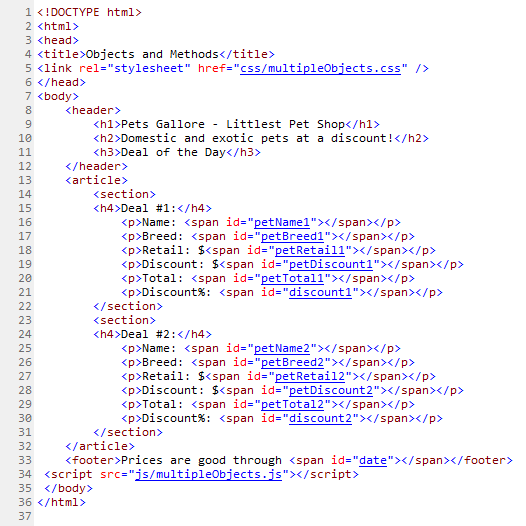
5. Use CSS styling to enhance the appearance of the page - the CSS should be in an external CSS file named multipleObjects.css
You need to include an image in the background (the image should be in the media folder), styling for the header, footer, headings and body. The page should be responsive.
Example of how this will look online:

6. Save all your changes and test the page offline. When everything looks good, transfer it to the Internet.
Once your pages are completed, you need to:
1) Add links to the pages in your index.html page
2) Transfer everything in the lesson2 folder
3) Transfer the index.html page
4) Validate your html at: https://validator.w3.org/ Correct all errors (read the warnings and if something will affect your page, you should fix it; otherwise, you can ignore them)5) Test your pages live to make sure they work.
6) I will correct the pages after they are due and I will email you to let you know what your score is.
IMPORTANT: If you have any questions or if you run into problems, let me know BEFORE the assignment is due! It is helpful, if you transfer your page and then send me an email so I can look at it and help you resolve the issue.
| Created the lesson2, js, css and media folders | 2 points |
| Added links to the assignment page | 2 points |
| Updated the dataTypes.html file | 8 points |
| Created multipleObjects.js as directed | 10 points |
| Created multipleObjects.html as directed | 5 points |
| Created multipleObjects.css as directed | 8 points |
| Total | 35 points |