

CIT190 - JavaScript Programming
Complete the following programming exercises: 30 points
1. Open the CIT190 folder and create the following folders: lesson3
Open the lesson3 folder and create the following folders:
Objective: Create an interactive heart rate calculator that includes if, if/else and switch statements.
NOTE: You will do some basic data validation in this exercise. The purpose of the exercise is not to find every possible error, it is to provide practice for selection structures and introduce you to data validation. If you would like to include extra data validation, feel free to do so. The requirements listed below are the minimal requirements in the assignment.
To see a video demonstrating how to create the page, watch: https://youtu.be/ba8wR41Dduk
1. Download targetHeartRate.html to your CIT190/Lesson3 folder
2. Download heartbeat.jpg to your CIT190/Lesson3/media folder
3. Open targetHeartRate.html for editing. The html and JavaScript events have been created for you in the body portion of the file. You will need to add 3 JavaScript functions to the <script> tags at the top of the page.
Function#1, calcRate(), will retrieve the data entered into the form, validate the data, calculate the heart rate zone and display it ot the user
a) create an age variable and retrieve the age using parseInt(document.getElementById("age").value)
b) create a resting heart rate variable and retrieve the resting heart rate using a parseInt statement similar to the one you used for age.
NOTE: Values retrieved from forms are text-based. parseInt converts the text-based values into a whole numbers you can use in calculations
c) declare a message variable that will be used to store the heart rate message before it is displayed to the user (you don't need to initialize the message, just declare it)
d) Use a nested if statement to validate the data retrieved from the form, calculate the target heart rate and format a display message
Format:
if (condition) {
statements;
}
else if
(condition){
statements;
}
else {
statements;
}
Pseudocode:
Create an if statement to check age to see if it is NOT a number or if it is greater than 99. The condition should be something like: isNaN(ageEntered) || ageEntered>99
If either condition is true, you need to:
- set the display message to something like:
"Please enter your age(15-99)";
- place a blank into the age element in the
form - something like: document.getElementById("age").value="";
- place
the focus on the age input element - something like:
document.getElementById("age").focus();
- set the age variable to blanks (for example ageEntered=""; )
else , create another if statement to check the resting heart rate for error conditions. The error conditions are: NOT a number OR not equal to zero AND it is less than 20 OR greater than 100. Your condition should be something like this: (isNaN(restingEntered) || restingEntered!=0 && restingEntered<20 || restingEntered>100)
If any of the three conditions are true, you need to:
- set the display message to something like:
Please enter your resting heart rate (20-100) or 50 if you don't know it";
-
place a blank into the resting heart rate element in the form - something like:
document.getElementById("restingHR").value="";
- place the focus on the
resting heart rate input element - something like:
document.getElementById("restingHR").focus();
- set the resting heart rate variable to blanks
else, calculate the target heart rate and set the message (at this point, both numbers are valid and you can do the calulation). You need a low end value, an adjusted low-end value, high end value and an adjusted high end value to represent the target heart rate range. The values you will display to the user are the adjusted low end through the adjusted high end rates
You need the following calculations and message:
low end rate calulation: (220-age entered -resting
HR entered) * .50;
low end adjusted rate: low end rate + resting HR entered;
high end rate calculation: (220- age entered - resting HR entered) * .85;
high end adjusted rate: high end rate + resting HR entered;
message to user
should be something like: "Your training heart rate is
between:<br>"+adjusted_low+" and "+adjusted_high;
e) Below the nested if/else, you need to update the page with the display message, this is done using the innerHTML property. You need something like this: document.getElementById("feedback").innerHTML=message;
f) To give the user a different goodbye message each time they finish the calculation, we are going to use a random number with a switch statement. At the bottom of the calcRate() function, you need to make sure the age and resting heartrate were good and then call the thankyou() function. There are a couple ways you can do this (depending upon your code).
You could do something like this:
if (highEndAdjusted)
thankyou();
or something like:
if(ageEntered&&restingEntered)
thankyou();
Function #2 will display a thank you message
This function is called at the bottom of the calcRate function and it's purpose is to display a variety of thank you or goodbye messages.
To create the function, you need to:
a) declare a random number variable and set it equal to: Math.floor((Math.random() * 7) + 1);
NOTE: Math.random retrieves a random number that is a decimal. Multiplying by 7 and adding 1 converts the number into a value 1 through 7 Math.floor is used to round the value up or down to a whole number.
b) declare a thank you message variable
c) create a switch statement that checks the random number variable. You need 5 cases and a default case (the default will handle random numbers 6 and 7).
example showing case #1:
switch(randomNumber){
case 1:
tyMsg = "Have a great day!";
break;
cases 2 through 5 will be similar to case #1. The default will also be similar but instead of using case 1: you will use default:
Function #3 will reset the portions of the page that display text to blanks (NOTE: The HTML 5 reset button resets input tags in the form, but doesn't reset HTML text that is displaying messages).
For this function, you need to reset the thanks id and the feedback id using document.getElementById("thanks").innerHTML=" "; NOTE: For feedback, the id is feedback instead of thanks :)
4. Once the functions are coded, test the page and correct any errors.
Objective: Work with the 3 types of repetition structures using counter controlled and sentinel controlled loops
To see a video showing how to create the pages, watch: https://youtu.be/KCj5Q6RCE3U
1. Download myFavorites.html to your CIT190/Lesson3 folder
2. Download Food.jpg to your CIT190/Lesson3/media folder
3. Open myFavorites for editing. You will notice CSS in the page for formatting at the top and you will also notice a <script> section wtihin the <body> of the page.
Your task is to create a script that will do the following:
a) Create a favorite food array
b) Ask the user how many foods
they want to enter, make sure they entered a valid number and store the value in a variable
(Do not let them continue in the script until the number entered is valid)
c) Create a
variable to count the number of items entered
d) Create a for loop that
prompts the user to enter their favorite food and adds the food to the food
array. The loop should only ask for the number of items they wanted to
enter (so if they indicated 4 items, it should only ask for 4 favorite foods)
e) Use document.writeln to create a heading 1 title that says:
Here are your favorite foods!
f) Use document.write
to begin an ordered list
g) Use a for loop to retrieve items from the
array and use document.write to create a numbered list of the items using the
<li> tag
h) After the loop is done, use document.write to create a
closing ordered list tag
Example similar to what you need to do except it is using an unordered list instead of an ordered list
let magicNumbers=[];
let number = prompt("How many lucky numbers do you
have?");
while(isNaN(number))
number= prompt("Please
enter a valid number! How many lucky numbers do you have?");
let counter, displayCounter;
for (counter=0; counter<number;
counter++){
// will display a 1 instead of a 0
displayCounter=counter+1;
magicNumbers[counter] =
prompt("Enter number#" + displayCounter);
}
document.writeln("<h1>Here are
your magical numbers...</h1>");
document.write("<ul>");
for (counter=0;
counter<number; counter++){
document.write("<li>" +
magicNumbers[counter] + "</li>");
}
document.write("</ul>");
4. Test the page offline in a browser. Make sure it works correctly and save all your changes.
5. Copy the myFavorites.html file to a new file named myFavoritesWhileLoop.html. Convert the for loops in the script to while loops. Save your changes and test the code. Correct any errors.
6. Copy the myFavorites.html file to a new file named myFavoritesDoWhileLoop.html Convert the for loops in the script to do while loops. Save your changes and test the code. Correct any errors.
Objective: Create a BMI calculator using an HTML form and JavaScript code
To see a similar example, view: howOldAreYou.html (to see the code, display the page, right click and select View Source Code from the menu.)
NOTE: There is no video for this exercise. Tasks in this exercise are similar to the previous exercises and the "How Old Are You" page.
To create the BMI page, you need to do the following:
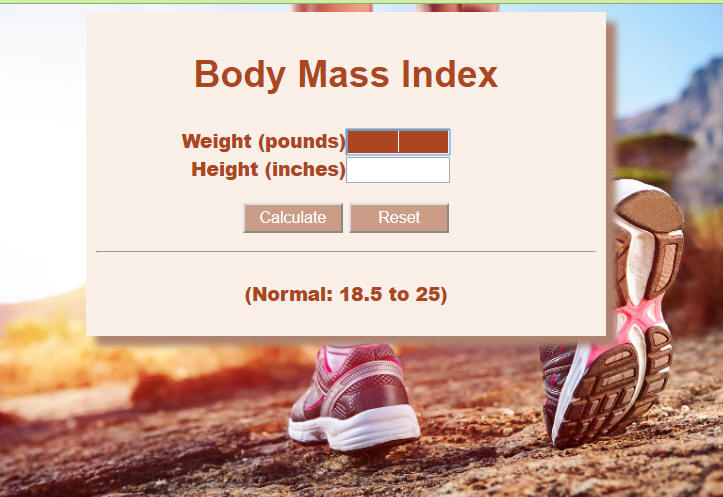
1. Create a form with a background image and input elements for height and weight. Name the page bmi.html and place the page into the CIT190/Lesson3 folder. The background image should be placed in the CIT190/Lesson3/media folder. Make sure you include appropriate css formatting so the elements align properly and the color scheme compliments the image you have selected.
2. After you read in the value for Weight and Height, validate the data to make sure numbers were entered and that the numbers are within a reasonable range. For weight < 60 or > 1000 would be out of range. For height, < 35 inches or > 90 inches would be out of range.
3. Create 2 functions: one to calculate BMI and another to place the focus on the weight element when the page is entered
Your page will be almost identical, but you are dealing with weight and height instead of age and months.
The calculation you need to use for BMI is: (weight * 703) / (height * height);
When you are done, your page should look similar to the examples shown below:
Example before values are entered:
Example after values are entered:

Once your pages are completed, you need to:
1) Add links to the assignment pages to your index.html page . The links should be under a week3 or lesson3 heading You should have 5 links: targetHeartRate.html, myFavorites.html, myFavoritesWhileLoop.html, myFavoritesDoWhileLoop.html and bmi.html
2) Transfer everything in the lesson3 folder and validate the html (correct any errors)
3) Transfer the index.html page
4) Test your pages live to make sure they work.
5) I will correct the pages after they are due and I will email you to let you know what your score is.
IMPORTANT: If you have any questions or if you run into problems, let me know BEFORE the assignment is due! It is helpful, if you transfer your page and then send me an email so I can look at it and help you resolve the issue.
| Created the lesson3, js, css and media folders | 1 point |
| Added links to the assignment page | 1 point |
| Updated the targetHeartRate.html page by adding the 3 functions in the <script> section as directed | 8 points |
| Updated the myFavorites.html page by adding the code to create the array and display the food array | 6 points |
| Created myFavoritesWhileLoop.html by copying and modifying favoriteFoods.html to use a while loop instead of a for loop. | 2 points |
| Created myFavoritesDoWhileLoop.html by copying and modifying favoriteFoods.html to use a do while loop instead of a for loop. | 2 points |
| Created the bmi form and script to calculate the BMI based upon the height and weight users enter. | 10 points |
| Total | 30 points |