Chapter 10 covers creating and using files, storing data structures, using the json module to save user data, and how to handle exceptions (errors) in your programs.
Videos for this lecture/demo have been split into 3 sections:
Each hands on section has it's own video explaining what you need to do
To see sample exercises that go with the Try It Yourself sections in the chapter, download: chapter_10.zip
File handling will make your programs more user friendly. It can be used in any application, but is particularly useful for web applications. It will allow you to save user data and retrieve the data so users can leave the application and return without having to re-enter anything.
Python has several functions for creating, reading, updating and deleting files.
Files can be text or binary. There are several modes for opening a file: read, append, write and create.
By default, Python files are opened for reading and Python assumes the file is a text file.
Syntax: fileVariable = open("fileName", "mode+fileType")
fileName is required
mode+fileType is optional
Mode can be:
"r" - read (Default) - opens a file for reading and returns an error if it doesn't exist
"r+" - read and write- opens a file for reading and writing and returns an error if it doesn't exist
"a" - append - opens a file for appending and creates the file if it doesn't exist
"a+" - read and append - opens the file for appending and reading. Creates the file if it doesn't exist.
"w" - write - opens a file for writing and creates the file if it doesn't exist. If the file already exists, it will replace the old file with the new one.
"w+" - write and read - opens the file for writing, creates the file if it doesn't exists, overwrites existing files and allows reading of the file.
"x" - create - creates the specified file and returns an error if the file ALREADY exists
File Type can be:
"t" - text(default)
"b" - binary (used for images)
When opening files, you can combine the mode and file type. For example "rt" or "at"
If you open the file without specifying the mode and file type, Python will open the file assuming it is "rt" (read only and text)
By default, Python looks for the file in the SAME directory as the program using it. If you store the file somewhere else, you need to include the file path before the name of the file.
If you open the file using the open command, you must close the file using the close method
Syntax: fileVariable.close()
If you use with open() to open the file, it will automatically close when you are done with it, even if there is an exception.
Syntax:
with open("filename") as fileObject:
statement1
statement2
statementN
Where the statements are the code you want to execute using the fileObject
It is considered best practice to use the with keyword when dealing with file objects (when you open a file and assign it to a variable, it is an object).
There are several methods you can use to read from files. There are also different ways of coding read statements.
Syntax:
with open("filename") as fileObject:
dataVariable=fileObject.read(filesize)
with open("filename") as fileObject - opens the file and creates the fileObject we will use to access data
dataVariable=fileObject.read(filesize) - the read method must be invoked by a fileObject. You can pass it the size of the file, but that is optional (filesize can be in bytes or characters). If you omit size, it retrieves the entire file. dataVariable is the object that will store the contents of the file.
Example: The foodFile object is created using the with open statement. The object is used to read the entire file and the contents are stored in favFoods (which is also an object). favFoods is then printed.
#favoriteFoods.txt file
Pizza
Tacos
Smoothies
Yogurt
#favoriteFoods.py file
Sample output:
Pizza
Tacos
Smoothies
Yogurt
Because the results of the text file are automatically stored in a string object, you can call Python string methods to help you format the object.
Example:
Sample Output
PIZZA
TACOS
SMOOTHIES
YOGURT
pizza
tacos
smoothies
yogurt
Pizza
Tacos
Smoothies
Yogurt
If you have extra spaces in the file, you can use rstrip, lstrip or strip
Readlines stores each line of data retrieved in a list and it adds "\n" to the end of every line but the last one (the last line is the end of the file). it is designed to read the entire contents of the file at one time.
Because the data is stored in a list, you can use list processing methods on the data. You can also use a "for... in" loop to process each line. The output will look a little different than read() because of the newline character added to the end (you will end up with double spaced output.)
Syntax:
with open("filename") as fileObject:
listVariable=fileObject.readlines()
with open("filename") as fileObject - opens the file and creates the fileObject we will use to access data
listVariable=fileObject.readlines() - retrieves each line of data and stores the line in a list with "\n" tacked on to the end of the line.
Example:
Sample Output:
Original list=['Pizza\n', 'Tacos\n', 'Smoothies\n', 'Yogurt']
Pizza
Tacos
Smoothies
Yogurt
Sorted foods=['Pizza\n', 'Smoothies\n', 'Tacos\n', 'Yogurt']
Reverse foods=['Yogurt', 'Tacos\n', 'Smoothies\n', 'Pizza\n']
This method creates a list (just like readlines) The difference is it only reads one line in the file; whereas, readlines() reads the entire file.
Example:
Sample Output:
Pizza
Because the file is closed automatically when "with open" is done, you cannot access anymore data from the file.
When using read() or readlines, it reads in the entire file. Readline only reads one line of the file. So, how do we read in the file one line at a time?
We need to use a for...in loop after we open the file.
Syntax:
with open("filename") as fileObject:
for lineVariable in fileObject:
statement1
statement2
statementN
The code will loop through the file object reading in one line at a time and executing the statements inside the for loop.
Example:
Sample Output:
Line# 1: Pizza
Line# 2: Tacos
Line# 3: Smoothies
Line# 4: Yogurt
If you loop through the file object created using the read() method, it will loop through 1 character at a time
Example:
Sample Output:
Line # 1 = P
Line # 2 = i
Line # 3 = z
Line # 4 = z
Line # 5 = a
Line # 6 =
Line # 7 = T
Line # 8 = a
Line # 9 = c
Line # 10 = o
Line # 11 = s
Line # 12 =
Line # 13 = S
Line # 14 = m
Line # 15 = o
Line # 16 = o
Line # 17 = t
Line # 18 = h
Line # 19 = i
Line # 20 = e
Line # 21 = s
Line # 22 =
Line # 23 = Y
Line # 24 = o
Line # 25 = g
Line # 26 = u
Line # 27 = r
Line # 28 = t
If the file you need to open is in a different directory, you need to provide a file path, which tells Python to look in a specific location on your system.
You can use relative paths to specify the file location (similar to relative links in web programming). You can also use absolute paths which is the EXACT location on your computer; however, that method is not very flexible.
Whether you use a relative or absolute path, it is best practice to assign the path to a variable name and then use the variable name in the open statement
Example: I created a folder (ie directory) inside my current directory and called it files. I placed the favoriteFoods.txt file inside the files folder.
To see a video explanation, watch: https://youtu.be/527P_GYD9Ik
1. Open the CIT228 folder and create a new folder named Chapter10.
2. Complete Try It Yourself 10-1 and 10-2. You are directed to create a file named learning_python.txt. Name the file that processes the file learning_python.py
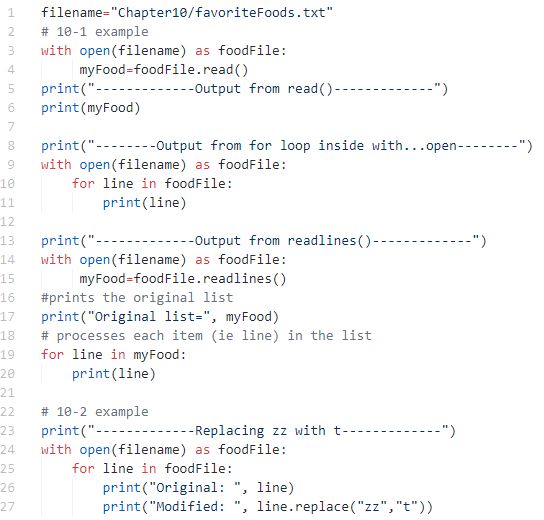
The directions in 10-1 say you need to print the file you created 3 times. The first time, you should use the read method. The second time, you should use a for loop to print without using the read method. The third time you should use readlines and print the list and then use a loop to print each line in the list.
For 10-2, you will need to process line by line to make the replace change indicated.
Your processing for 10-1 and 10-2 should look similar to the example below:
NOTE: When we execute the program, the terminal Window shows the CIT228 directory. Python will assume the files we create and try to access are in that CIT228 directory INSTEAD of the Chapter directories where we have our program code and where we have created the files. In order for the program to run correctly, you need to specify the directory in addition to the file name. That is why the filename variable is being used at the top of the program :)
Writing to files is one method of saving data from your program. After the program runs, the file will be available for further processing.
To write to a file, you need to open the file using one of the following modes: w, x or a
"x" - Create - will create a file and returns an error if the file exist
"a" - Append - will create a file if the specified file does not exist and will add data to the end of the file if the file does exist
"w" - Write - will create a file if the specified file does not exist AND it will overwrite any existing files
The default file type is text, so if you open a file for writing, you can omit the type of you want a text file; otherwise, you need to include a b for binary
Syntax:
with open("filename","w") as fileObject:
fileObject.write("data to write")
Example:
Sample Output:
Who is your favorite cartoon character? Scooby Doo
Your favorite character is: Scooby Doo
Example of what happens when you use the write mode on an existing file:
Sample Output - note the characters.txt file started out with Scooby Doo in the file and that was overwritten by Mickey Mouse Club
Your favorite character is: Scooby Doo
What is your favorite cartoon? Mickey Mouse Club
Your favorite character is: Mickey Mouse Club
Append mode is the safest mode to use if you want to add data to existing files OR create the file if it doesn't exist. It will not overwrite the file.
Syntax:
with open("filename","a") as fileObject:
fileObject.write("data to write")
Example of adding to an existing file using a loop
Sample Output
Your favorite cartoon is: Mickey Mouse Club
What is your favorite cartoon (q to quit)? Scooby Doo
What is your favorite cartoon (q to quit)? Alvin and the Chipmunks
What is your favorite cartoon (q to quit)? q
Your favorite cartoon is: Mickey Mouse ClubScooby DooAlvin and the Chipmunks
PROBLEM:
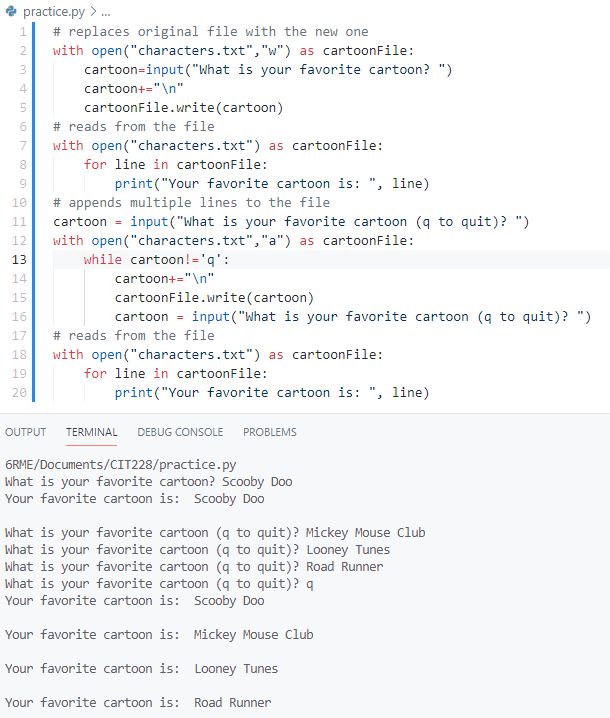
If you add multiple lines to a text file, you must include the newline character or the data is combined into a single line
Revised program with newlines and sample output:
:
You can only use create mode if the file doesn't exist. If the file exists, you will get an exception error.
You can delete the file first and then use create mode, although using write mode is simpler and accomplishes the same thing!
To delete a file in python, you need to import functions designed to work with the operating system by using import os. You can use the os object to delete files using the remove command. You can also use the os object to see if the file exists
Syntax:
import os
if os.path.exists("filename"):
os.remove("filename")
or
import os
if os.path.isfile("filename"):
os.remove("filename")
NOTE: Both os.path.exists() and os.path.isfile() will check to see if the file is there
Example:
Once you verify the file doesn't exist (or you delete it), you can create a new file using x mode.
Syntax:
with open("filename","x") as fileObject:
fileObject.write("data to write")
Example:
Sample Output
Who is your favorite fictional character (q to quit)? Sherlock Holmes
Who is your favorite fictional character (q to quit)? Gandalf
Who is your favorite fictional character (q to quit)? Harry Potter
Who is your favorite fictional character (q to quit)? Cookie Monster
Who is your favorite fictional character (q to quit)? q
-----------------Favorite Fictional Characters-----------------
Sherlock Holmes
Gandalf
Harry Potter
Cookie Monster
To see a video explanation, watch https://youtu.be/-NLE_Yy_5ic
1. Complete Try it Yourself 10-3 and 10-4 and name the file guest_book.py. The processing you need to use is similar to the example below from the notes section above. The only difference is after you write to the file, you need to print a greeting before the input prompt in the while loop
You will need to make up a name for the text file you create (it doesn't matter to me what you call it)
2. Comment out the code in guest_book.py by placing 3 quotes at the beginning and 3 quotes at the end
3. Below the existing code,
a) check to see if the file you created exists and if it does, delete the file.
b) create a new file using the "w" write mode.
c) use a while loop that allows guests to enter their names.
d) once they enter their names, print out their room numbers using random.randint(1,50).
1) Store the room numbers in a list and check the list to make sure the room number you assigned isn't already used.
2) If the room number is used, assign a different one
e) write the guest name and their room number to the file
f) after you have entered all the guests, print out a list of guests and their room numbers
The example below is similar to what you need to do.

When a programming error occurs,Python will stop running the program and display an error message. There is code you can integrate into your program that will handle errors and allow the program to continue running. The code is typically referred to as Exception Handling and it involves using a try block.
Most languges use the terms try, catch and finally; HOWEVER, in Python, the terminology is try, except, else and finally.

Anything that you believe could cause an error should be inside a try block.
Syntax:
try:
statement1
statement2
statementN
Example:
try:
n1=1
n2=0
result=n1/n2
Below the try block, you should have 1 (or more) exception blocks.
If you know the name of the error that python will throw, you can code an except block for that specific error. For a list of builtin exceptions, see: https://docs.python.org/3/library/exceptions.html
At the minimum, you should have a generic Except block that can handle the error
Syntax:
except:
statement1
statement2
statementN
Example: The first except block is for the builtin ZeroDivisionError. The second except block handles all other errors.
If you don't want Python to display an error message for an exception, you can use the keyword pass. Using the keyword still enables the program to continue running and for the exception to be handled.
Syntax:
except:
pass
Example:
The else block, if used, contains code that should execute ONLY if there are NO errors. If an exception occurs, the else block is skipped. This type of processing is typically used for file handling - if you cannot open or read the file, then you shouldn't try to print or do any type of file processing
Syntax:
else:
statement1
statement2
statementN
File Handling Example:
Sample Output: The very first filename entered couldn't be located, but the program continued to run because of the exception handling.
Enter the name of the file you want to read (q to quit): characters
The file you are trying to access characters cannot be found
Enter the name of the file you want to read (q to quit): characters.txt
Dumbledore
Snape
Captain America
Enter the name of the file you want to read (q to quit): guests.txt
Frank Furter, room# 19
Cookie Crumb, room# 25
Cookie Monster, room# 45
Shaggy Rogers, room# 17
The finally block is optional. It ALWAYS runs even if there isn't an error. It is typically used to close objects like files or clean up resources. If you use with open to open your files, they will automatically close, so the block is not necessary. You only need it to close files if they are opened using fileNameObject = open("name of file")
Syntax:
try:
statement1
statement2
statementN
except:
statement1
statement2
statementN
else:
statement1
statementN
finally:
statement1
statementN
Example #1: This is not the best way to handle files, but it does illustrate how the finally block works. Because the finally block always runs, a flag is set when the file is opened successfully and the flag is checked in the finally block to determine if the file should be closed or not.
Sample Output:
Enter the name of the file you want to read (q to quit): char.txt
The file you are trying to access char.txt cannot be found
Enter the name of the file you want to read (q to quit): characters.txt
Dumbledore
Snape
Captain America
Example #2: In the example below, the finally block runs everytime (even if there isn't any error)
Sample Output:
Would you like to continue, q to quit?
3 / 3 = 1.0
Thanks for playing!
Would you like to continue, q to quit?
You have a divide by zero error, the denominator has been modified
9 / 9 = 1.0
Thanks for playing!
Would you like to continue, q to quit?
6 / 4 = 1.5
Thanks for playing!
Would you like to continue, q to quit?
4 / 7 = 0.5714285714285714
Thanks for playing!
To see a video explanation, watch: https://youtu.be/iTk3rvVGthE
1. Complete Try It Yourself 10-6 and 10-7. Name the file addition.py
Sample Output after 10-7
Please enter the first number 12345
Please enter the second number 9876
12345 + 9876 = 22221
Would you like to play again? (q to quit)
Please enter the first number safasdf
You must enter numbers instead of text, please try again!
Please enter the first number 40
Please enter the second number asdfasf
You must enter numbers instead of text, please try again!
Please enter the first number 40
Please enter the second number 20
40 + 20 = 60
Would you like to play again? (q to quit)
Please enter the first number 87
Please enter the second number 98
87 + 98 = 185
Would you like to play again? (q to quit) q
2. Copy the file word_count.py into a new file named word_count_and_find.py.
3. Find 3 excerpts of books or poems and save them to 3 different text files in your chapter 10 folder. Modify the filenames variable in the program to include the Chapter10 folder as shown in the example below:
4. Make sure the program runs correctly.
5. Add in requirements from Try It Yourself 10-10. To do this, complete the following:
a) create a new function named find_words
b) the function should accept the filename and search word as parameters
c) the try and except processing you need is identical to the count_words function already in the program
d) the else processing should do the following:
words=contents.count(search)
e) in the main program, below the for loop that calls count_words, prompt the user for a common word they want to search for in the text files
f) create a new for loop that calls the find_words function and passes it the filename along with the searchWord
Example:
Your output should look similar to the example below:
The file Chapter10\Still I Rise.txt has about 247 words.
The file Chapter10\Road Not Taken.txt has about 151 words.
The file Chapter10\Invictus.txt has about 108 words.
What common word would you like to search for within the files? the
The word, the , occurred 9 times in the Chapter10\Still I Rise.txt file.
The word, the , occurred 9 times in the Chapter10\Road Not Taken.txt file.
The word, the , occurred 12 times in the Chapter10\Invictus.txt file.
Python includes a json module that lets you store and load JSON files.
JSON files are used to store and exchange data on the web. Many companies share information by allowing developers to access APIs which store data in JSON files. You can also use JSON files to store user data when they are playing a game. The advantage of using JSON files is they are compatible with many different programming languages.
JSON files consist of name:value pairs. A name:value pair includes a field name (in double quotes), followed by a colon and a value: EXAMPLE: "firstName":"Scooby"
JSON values can be:
JSON objects are written inside curly braces and can contain multiple name/values pairs
Example: {"firstName":"Scooby", "lastName":"Doo"}
You may notice that the JSON syntax looks similar to Python's dictionary syntax.
In Python, we can use a dictionary object to store JSON data. There are builtin Python methods that write to json files and read from json files.
json.dump() is used to write Python serialized objects as JSON formatted data. DO NOT confuse this method with json.dumps() which is ONLY used to encode a python object into a JSON formatted display string (dumps is not used to write files!)
json.dump() - writes Python serialized objects as JSON formatted data
json.dumps() - encodes ANY Python object into a JSON formatted string.
To write to a file, you need to use json.dump()
Syntax: json.dump(PythonObject, fileName, indent=4, sort_keys=True)
Example: The example produces 4 files that illustrate the effects of using indent and sort_keys
studentNoIndent.json contents
{"id": 1001, "name": "Cookie Crumb", "class": "Sophomore", "attendance": 90,
"semester": "Spring", "year": 2021, "classes": ["CIT228", "ENG112", "CIT190", "CIT240", "MTH140"],
"email": "crumbling@cookie.com"}
studentIndent4.json contents
{
    "id": 1001,
    "name": "Cookie Crumb",
    "class": "Sophomore",
    "attendance": 90,
    "semester": "Spring",
    "year": 2021,
    "classes": [
        "CIT228",
        "ENG112",
        "CIT190",
        "CIT240",
        "MTH140"
    ],
    "email": "crumbling@cookie.com"
}
studentIndent0.json contents
{
"id": 1001,
"name": "Cookie Crumb",
"class": "Sophomore",
"attendance": 90,
"semester": "Spring",
"year": 2021,
"classes": [
"CIT228",
"ENG112",
"CIT190",
"CIT240",
"MTH140"
],
"email": "crumbling@cookie.com"
}
studentIndent4WithSort.json contents
{
    "attendance": 90,
    "class": "Sophomore",
    "classes": [
        "CIT228",
        "ENG112",
        "CIT190",
        "CIT240",
        "MTH140"
    ],
    "email": "crumbling@cookie.com",
    "id": 1001,
    "name": "Cookie Crumb",
    "semester": "Spring",
    "year": 2021
}
json.load() is used to read from a json file and place the results into a dictionary variable.
Syntax: dictionaryObject = json.load(filename)
Example:
Sample Output:
attendance = 90
class = Sophomore
classes = ['CIT228', 'ENG112', 'CIT190', 'CIT240', 'MTH140']
email = crumbling@cookie.com
id = 1001
name = Cookie Crumb
semester = Spring
year = 2021
Adding an entry to an existing JSON file is a little tricky. You cannot simply open the file for appending and append the data because Python will try to add the key:value pair as a second dictionary
Example of the problem: GPA should be included in the dictionary with the other student information, instead it is added as a separate dictionary below the first one
Solution: There is a way to add new dictionary items to JSON files, but it involves using a few more methods from the json module.
The update method will let you add a new key:value pair to a dictionary object
Syntax: dictionaryObject.update(newDictionaryEntry)
Example: The file is opened with an r+ to allowing reading and writing. The procedure is to read from the file and then add the dictionary entry
When you open a file for reading and writing, and you read from the file, the file pointer is moved to the end of the file. If you want to add a name:value pair to the file, you can reposition the pointer to the beginning of the file using the seek() method
Syntax: fileObject.seek(pos)
where pos is the location you want to move the file pointer to. 0 is the beginning of the file.
Example: Function that reads from the file, adds to the dictionary, repositions the file pointer and updates the json file with the new information
Here's what the json file looks like with GPA added correctly:
Full Programming Example: Allows adding to the json file using new dictionary key:value pairs and reading from the file to print out the key:value pairs
Sample Output
What do you need to add to the student file? GPA
Please enter the value associated with GPA 4.0
Data has been added to studentIndent4WithSort.json
GPA = 4.0
attendance = 90
class = Sophomore
classes = ['CIT228', 'ENG112', 'CIT190', 'CIT240', 'MTH140']
email = crumbling@cookie.com
id = 1001
name = Cookie Crumb
semester = Spring
year = 2021
If you are going to create a program that reads from a file and writes to a file, it is a good idea to refactor (or modularize) the code. You can place the read logic in a function, the append logic in a function, the write logic in a function and the print logic in a function.
Example from the book:
The greet_user() function retrieves the stored username by calling the get_stored_username function. If the username is there, it prints a greeting. If it is not there, the get_new_username() function is called and when the name is created, a greeting is printed out
The get_stored_username() function returns the username file if it exists and if it doesn't exist, it returns nothing
The get_new_username() function has the user input their name, the file is opened and written to and the name is returned to greet_user()

More complex example:
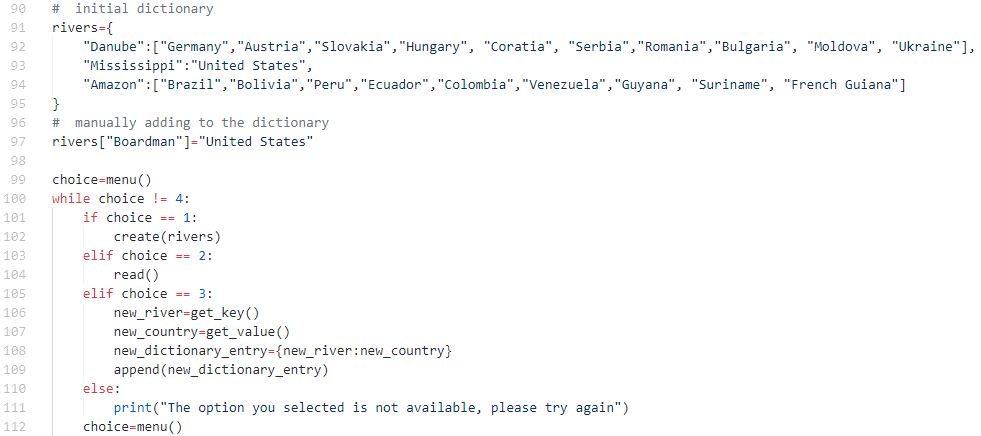
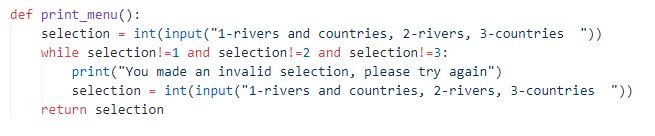
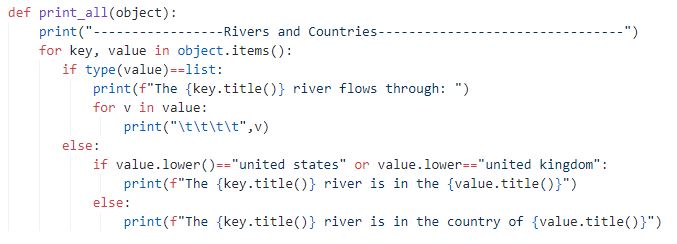
The main program calls several functions. The first function called, menu(), displays a menu of options. Based on the users choice, different functions are called.
Main Program
menu() function

create() function - designed to create a new file or overwrite an existing file

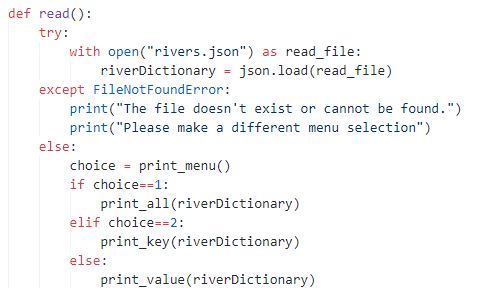
read() function - designed to open the file for reading. It gives users the option of printing the file 3 different ways by displaying a print menu and based on their choice, different print functions are called.
print_menu() function
print_all() function
print_key() and print_value() functions

get_key(), get_value() and append function() - if the user wants to add to the river dictionary and rivers.json file, we need to get the new key using the get_key() function, get the new value using the get_value() function, format the dictionary entry and pass the entry to the append() function.



To see the entire file, view: rivers-file-handling-example.txt
To see an example almost identical to what you need to do in hands on 4, view: fav-number-file-handling.txt (this is one of the files from chapter 6 adapted for file handling)
To see a video explaination, watch: https://youtu.be/QsZ2avAbxgs
1. Copy Chapter6/glossary.py into your Chapter10 folder
2. Create a function to write the glossary to a json file
3. Create a function to read from the glossary json file and print the results
4. Create a function to add (append) items to the glossary json file
5. Create a menu function that lets the user
6. In the main program, use a while loop to continue processing until the user selects quit from the menu
7. Make sure your program handles keys that are more than one word ( For example, if the user enters assert method for the term, you will need to format that before you can use it as a key. You could format it as assert_method, assertMethod or assert-method.)
1. You should have the following files in your Chapter10 folder:
| Exercise | Assignment Files | Points |
|---|---|---|
| Hands On 1: Try It Yourself 10-1 and10-2 |
learning_python.txt learning_python.py |
10 points |
| Hands On 2: Try It Yourself 10-4 | guests_book.py guests.txt |
10 points |
| Hands On 3: Try It Yourself 10-6 and 10-7 |
addition.py | 10 points |
| Hands On 3: Try It Yourself 10-10 | word_count_and_find.py 3 text files you created |
10 points |
| Hands On #4 | glossary.py | 10 points |
2. Upload Chapter10 to GitHub
a. Click the ... next to CIT228 Git and select the Changes menu, Stage all Changes command.
b. In the Message window below Source Control, enter Chapter10 and then click the ... next to CIT228 Git and select the Commit menu, Commit Staged command
c. Display the menu next to the CIT228 Git folder by selecting ... and select the Push command
d. This will put all files and folders inside your CIT228/Chapter10 directory into your GitHub repository
3. Open a web browser and go to your CIT228 repository. Make sure the Chapter10 directory and files are there, then copy the URL and paste it into the lab assignment dropbox (you are done with the second part of your lab assignment!)