Chapters 3 and 4 deal with Python Lists. Chapter 3 deals with creating, modifying and accessing data in lists. Chapter 4 deals with looping through lists and working with Tuples which is a variation of a list that doesn't allow data to be changed.
To see sample exercises that go with the Try It Yourself sections in the chapter, download: chapter_03.zip
The lecture informaton is in one video. To see an explanation of all lecture material in chapter 3, watch: https://youtu.be/pBwz0cCn0iM
Each hands on exercise has it's own video that you can access at the top of the hands on section.
Lists are one of Python's builtin data types and are used to store multiple items under a single variable name.
What is unique about lists is the data is ordered, changable and allows duplicate values.
There are 2 ways to create lists. When you create a list using either technique, it is an object and can use methods and properties associated with the list class.
Syntax for the most common method:
listName = [ item1, item2, itemn]
Examples:
fruits=["melon","blueberry","strawberry","banana"]
favorites=["orange", 20, "Pizza", [2,20,22]]
Syntax using the list() constructor
NOTE the brackets are replaced by double parenthesis on each side with the list classname is added before the parenthesis:
listName = list((item1, item2, itemn))
Examples:
fruits=list(("melon","blueberry","strawberry","banana"))
favorites=(("orange", 20, "Pizza", [2,20,22]))
To access data within a list, you need to subscript into the list using brackets. If you forget to subscript into the list, Python will simply print the item names instead of the values being stored
Example:
fruits=["melon","blueberry","strawberry","banana"]
print(fruits)
Output:
['melon', 'blueberry', 'strawberry', 'banana']
The first item in the list has a subscript of 0. To access the last item in the list, use a subscript of -1
Example:
fruits=["melon","blueberry","strawberry","banana"]
print(fruits[0])
print(fruits[-1])
Output:
melon
banana
Python allows other negative numbers for subscripts. Negative numbers begin subscripting from the end of the list and move toward the beginning. A subscript of -2 will retrieve the second item from the end. A subscript of -3 will retrieve the third item from the end etc.
Example:
fruits=["melon","blueberry","strawberry","banana"]
print(fruits[0])
print(fruits[-1])
print(fruits[-2])
print(fruits[-3])
Output:
melon
banana
strawberry
blueberry
C. Using individual Values from a List
You can retrieve individual values in a list and use them like you would any other variable. If the value you are retrieving is a string, you can use string methods with it. If the value is a number, you can perform arithmetic on it.
Example:
fruits=["melon","blueberry","strawberry","banana"]
print(f"I want a {fruits[1]} and {fruits[2]} smoothie!")
Output
I want a blueberry and strawberry smoothie!
To see a video demonstration, watch: https://youtu.be/5xdfVFh9w4k
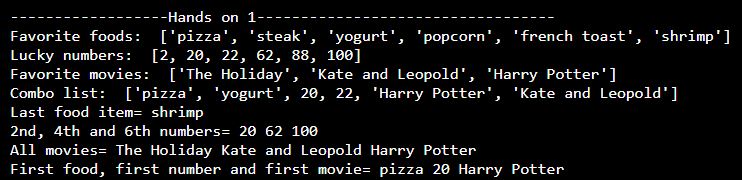
1. Open the CIT228 folder and create a new folder named Chapter3
2. Create a new file and save it in the Chapter3 folder. Name the file myFavorites.py
3. Create a list that includes 6 of your favorite foods. Print the list.
4. Create a list that includes 6 of your favorite numbers. Print the list.
5. Create a list that includes 3 of your favorite movies. Print the list.
6. Create a list that includes 2 of your favorite foods, 2 of your favorite numbers and 2 of your favorite movies. Print the list.
7. Print the last item in the favorite food list.
8. Print the second, fourth and sixth item in the numbers list.
9. Print all 3 movies in the movies list.
10. Print the the first food, first number and first movie from the list that includes everything.
11. Save all your changes.
Your output should look similar to the example shown below:
To change an item, subscript into the list and assign it a different value
Syntax:
listname[sub] = newValue
Example:
fruits=["melon","blueberry","strawberry","banana"]
print("Value stored at subscript 3=", fruits[3])
fruits[3] = "peach"
print("Value stored at subscript 3=", fruits[3])
Output:
Value stored at subscript 3= banana
Value stored at subscript 3= peach
New items are typically added to the end of a list by appending the item to the list
The list class has an append method you can call using the list object you created.
Syntax:
listName.append(newItem)
Example:
fruits=["melon","blueberry","strawberry","banana"]
print("Original List=", fruits)
fruits.append("peach")
fruits.append("pear")
print("Revised List=", fruits)
Output:
Original List= ['melon', 'blueberry', 'strawberry', 'banana']
Revised List= ['melon', 'blueberry', 'strawberry', 'banana', 'peach', 'pear']
Using the append method is the easiest way to dynamically create a list.
For example, if you begin with an empty list, such as fruits = [ ], you can use fruits.append to add items dynamically to the list when the program runs.
Dynamic lists are very common because we often store user input that you won't know until the program runs!
The insert() method is used to add an item anywhere in the list.
Syntax:
listName.insert(position, newItem)
Where position is the element# you want the value placed into (the new value will go BEFORE the element #)
Example:
fruits=["melon","blueberry","strawberry","banana"]
print("Original List=", fruits)
fruits.insert(0,"peach")
fruits.insert(-2,"pear")
print("Revised List=", fruits)
Output:
Original List= ['melon', 'blueberry', 'strawberry', 'banana']
Revised List= ['peach', 'melon', 'blueberry', 'pear', 'strawberry', 'banana']
NOTE: The pear item was added before strawberry which occupies fruits[-2]
There are a couple different techniques for removing items. The technique you pick depends upon what you want to do with the removed item.
The delete command removes the item from the list
Syntax: del list[sub]
Example:
fruits=['peach', 'melon', 'blueberry', 'pear', 'strawberry', 'banana','pear']
del fruits[1]
print(fruits)
Output
['peach', 'blueberry', 'pear', 'strawberry', 'banana', 'pear']
The pop() method removes the last item from the list AND it allows you to save the value removed in a variable (delete doesn't allow this)
Syntax to remove: listName.pop()
Syntax to remove and save the value: variable = listName.pop()
Example:
fruits=['peach', 'melon', 'blueberry', 'pear', 'strawberry', 'banana','pear']
removedFruit =fruits.pop()
print(fruits)
print(removedFruit)
Output
['peach', 'melon', 'blueberry', 'pear', 'strawberry', 'banana']
pear
The pop(subscript) method lets you remove an item anywhere in the list based on the subscript number you provide AND it lets you save the item in a variable so you can use it in code.
Syntax to remove: listName.pop(sub#)
Syntax to remove and save the value: variable = listName.pop(sub#)
Example:
fruits=['peach', 'melon', 'blueberry', 'pear', 'strawberry', 'banana','pear']
removedFruit =fruits.pop(2)
print(fruits)
print(removedFruit)
Output
['peach', 'melon', 'blueberry', 'pear', 'strawberry', 'banana']
blueberry
The remove(item) method lets you remove an item from the list based upon the value being stored. If you have duplicate values, only the first one will be removed. It does NOT let you save the value that is removed; however, you can store the value in a variable ahead of time since you know what it is.
Syntax: listName.remove(value)
Example:
fruits=['peach', 'melon', 'blueberry', 'pear', 'strawberry', 'banana','pear']
fruits.remove('pear')
print(fruits)
Output:
['peach', 'melon', 'blueberry', 'strawberry', 'banana', 'pear']
Syntax that saves value:
removeValue = value
listName.remove(removeValue)
Example:
fruits=['peach', 'melon', 'blueberry', 'pear', 'strawberry', 'banana','pear']
removedFruit = 'pear'
fruits.remove(removedFruit)
print(fruits)
print(removedFruit)
Output:
['peach', 'melon', 'blueberry', 'strawberry', 'banana', 'pear']
pear
To see a video demonstration, watch: https://youtu.be/uo2oCeMRAYM
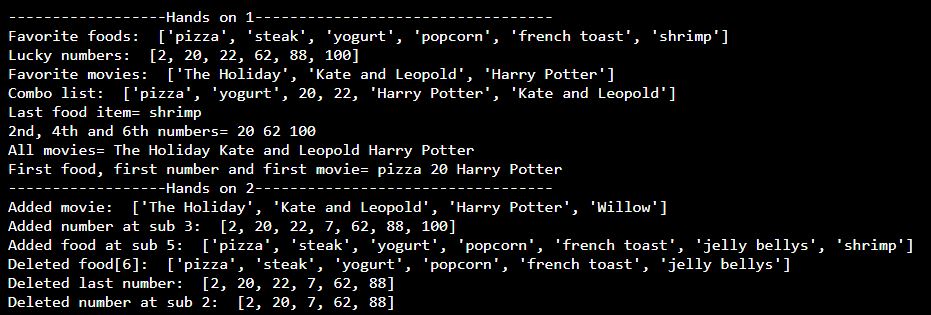
1. Open myFavorites.py and make the following changes.
2. Use the append command to add a movie to the movie list. Print the list.
3. Use the insert command to add an item to the number list at subscript 3. Print the list.
4. Use the insert command to add an item to the food list at subscript 5. Print the list.
5. Use the del command to remove an item from your food list. Print the list.
6. Use the pop() command to remove an item from your number list. Print the list
7. Use the pop(2) command to remove the second item from your number list. Print the list
8. Save all your changes
Your output should look similar to the example below:
Since lists are objects, we can use methods to organize the items within the list. There are a variety of methods available. We are going to look at the most popular ones which involve sorting.
Permanently sorts the list in alphabetic order.
Syntax: listName.sort()
Example:
fruits=['peach', 'melon', 'blueberry', 'pear', 'strawberry', 'banana','pear']
fruits.sort()
print(fruits)
Output:
['banana', 'blueberry', 'melon', 'peach', 'pear', 'pear', 'strawberry']
Temporarily sorts the list (note this is a function and not a method which means, we don't use the listName to "call" it like we do with methods)
Syntax: sorted(listName)
NOTE: Functions do not require objects and a dot before the function name - that is how you can tell you are using a function instead of a method.
Example:
fruits=['peach', 'melon', 'blueberry', 'pear', 'strawberry', 'banana','pear']
print(sorted(fruits))
print(fruits)
Output
['banana', 'blueberry', 'melon', 'peach', 'pear', 'pear', 'strawberry']
['peach', 'melon', 'blueberry', 'pear', 'strawberry', 'banana', 'pear']
NOTE: The sorted() function doesn't make permanent changes, as you can see in the example, the second print statement is showing the original order
Sorts the list in reverse order (It doesn't alphabetize the list, it just reverses the order - if you want the list alphabetized, you need to sort it first and then use reverse)
Syntax: listName.reverse()
Example:
fruits=['peach', 'melon', 'blueberry', 'pear', 'strawberry', 'banana','pear']
fruits.sort()
fruits.reverse()
print(fruits)
Output:
['strawberry', 'pear', 'pear', 'peach', 'melon', 'blueberry', 'banana']
Returns the number of items in a list
Syntax: len(listName)
Example:
fruits=['peach', 'melon', 'blueberry', 'pear', 'strawberry', 'banana','pear']
print("The number of items in your list is: ", len(fruits))
Output:
The number of items in your list is: 7
If you try to subscript into a list beyond the bounds of the list (ie the beginning or end) you will get an IndexError similar to the one shown below:
IndexError: list index out of range
Full Example:
fruits=['peach', 'melon', 'blueberry', 'pear', 'strawberry', 'banana','pear']
print("The number of items in your list is: ", len(fruits))
print("This item is beyond the bounds of the list: ", fruits[20])
Output:
Test.py", line 5, in <module>
print("This item is beyond the bounds of the list: ", fruits[20])
IndexError: list index out of range
Keep this in mind when you are working with lists!
To see a video demonstration, watch: https://youtu.be/GfmXLFclVeA
1. Open myFavorites.py and make the following changes.
2. Use the sort() method to sort the movie list and print the results.
3. Use the sort() method to sort the food list and print the results.
4. Use the sorted function to sort and print the number list, then print the number list again to show the change wasn't permanent.
5. Use the reverse() method to change the sort order of the movie list and print the results.
6. Save your changes.
Your output should look similar to the example below:

To see a partial demonstration, watch: https://youtu.be/lIDlKSJznOw
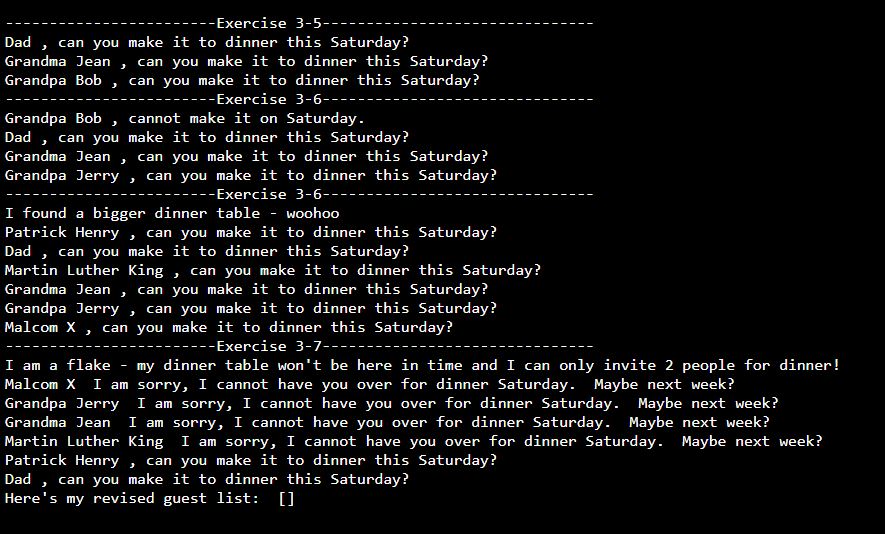
1. Complete the following exercises:
Name the file guests.py and save it into your Chapter3 folder. You can complete all 4 exercises in 1 file or you can save them to separate files (it is up to you).
Here's an example of what your output could look like if you saved the exercises to 1 file:
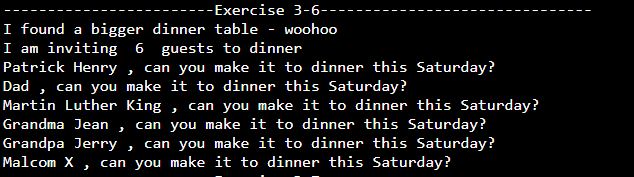
2. Complete exercise 3-9 on page 46. Add the len() function to exercise 3-6 which has the most guests.
Sample Output:
3. Complete exercise 3-10 on page 46. You can name the file whatever you want. Save it into your Chapter3 folder.
HINT: Functions and methods you need to include in the exercise 3-10 program include: f-string, append(), insert(), del(), pop(), remove(), sorted(), reverse(), sort(), len()
Sample Output for exercise 3-10:
----------------------------------------------------------------------------------------------------------
Animals in the Zoo
----------------------------------------------------------------------------------------------------------

Original list:  ['Tiger', 'Lion', 'Rhino', 'Polar Bear', 'Snow Monkey', 'Giraffe', 'Zebra', 'Antelope', 'Alligator']
List after additions:  ['Tiger', 'Lion', 'Rhino', 'Polar Bear', 'Leopard', 'Snow Monkey', 'Giraffe', 'Zebra', 'Antelope', 'Alligator', 'Lemur', 'Ape', 'Penguin']
List after deletions:  ['Tiger', 'Lion', 'Rhino', 'Polar Bear', 'Leopard', 'Giraffe', 'Zebra', 'Alligator', 'Lemur', 'Ape']
List with temporary sort:  ['Alligator', 'Ape', 'Giraffe', 'Lemur', 'Leopard', 'Lion', 'Polar Bear', 'Rhino', 'Tiger', 'Zebra']
List sorted in reverse:  ['Ape', 'Lemur', 'Alligator', 'Zebra', 'Giraffe', 'Leopard', 'Polar Bear', 'Rhino', 'Lion', 'Tiger']
List sorted in alphbetical order:  ['Alligator', 'Ape', 'Giraffe', 'Lemur', 'Leopard', 'Lion', 'Polar Bear', 'Rhino', 'Tiger', 'Zebra']
There are  10  in the final list
To see a video demonstration, watch: https://youtu.be/W89CCO0tqbk
1. You should have the following files in your Chapter3 folder:
2. Upload Chapter3 to GitHub
a. Click the ... next to CIT228 Git and select the Changes menu, Stage all Changes command.
b. In the Message window below Source Control, enter Chapter3 and then click the ... next to CIT228 Git and select the Commit menu, Commit Staged command
c. Display the menu next to the CIT228 Git folder by selecting ... and select the Push command
d. This will put all files and folders inside your CIT228/Chapter3 directory into your GitHub repository
3. Open a web browser and go to your CIT228 repository. Make sure the Chapter3 directory and files are there, then copy the URL and paste it into the lab assignment dropbox (you are done with the first part of your lab assignment!)