Last week we learned how to retrieve data from a single table. Today, we are going to learn how to retrieve data from multiple tables using SQL JOIN statements
By the end of this unit, you should be able to:
• Explain when column names need to be qualified.
• Describe the
proper use of correlation names.
• Describe the differences between
an inner join, a left outer join, a right outer join, a full outer join,
and a cross join.
• Explain why you don’t need to use right outer
joins.
• Describe the use of the implicit syntax for coding inner
joins.
• Explain what a self-join is and why it might be used.
•
Describe the use of unions including the use of the EXCEPT and INTERSECT
operators.
Within the keypoints lecture, there are links to "live" sites that allow you to practice commands. Make sure you utilize the live sites because they will help you differentiate between join commands and lead to a better understanding of concepts presented.
The textbook assignment provides hands-on practice for concepts covered below and includes video demonstrations for all required tasks.
A JOIN clause is used to combine rows from two or more tables, based on a related column between them. The records retrieved from each table depend upon the type of join you specify.
There are 4 different types of joins:
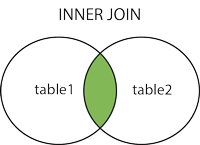
1) JOIN( or INNER JOIN): Returns records that have matching values in both tables.
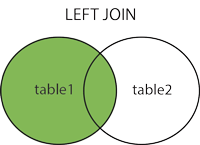
2) LEFT JOIN (or OUTER LEFT JOIN): Return all records from the left table, and the matched records from the right table
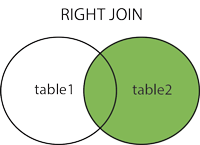
3) RIGHT JOIN (or OUTER RIGHT JOIN): Return all records from the right table, and the matched records from the left table
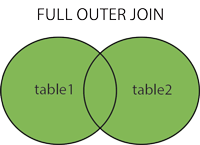
4) FULL JOIN (or OUTER JOIN): Return all records when there is a match in either left or right table
SELECT columnName(s)
FROM table1
JOIN-TYPE
table2 ON table1.columnName = table2.columnName;
Where JOIN-TYPE is JOIN (or INNER JOIN), LEFT JOIN, RIGHT JOIN or FULL JOIN
Keypoints to remember:
1) In the SELECT statement, you can display columns from either table. You should use qualified column names (names that identify the table, a dot, and the column name). Many tables use the same column names, so identifying the table name with the column name is good practice.
2) The FROM statement should refer to table1
3) The JOIN statement should refer to table2
4) The ON clause indicates which columns you are connecting tables on. The columns are normally the key columns (primary key and foreign key)
5) You can join more than two tables. Each table you are joining requires the JOIN statement with the ON clause
The inner join selects records that have matching values in both
tables (it is the most restrictive join)
SELECT columnName(s)
FROM table1
JOIN table2 ON
table1.columnName = table2.columnName;
Customer/Order Example Joining 2 Tables:
SELECT Orders.OrderID, Customers.CustomerName
FROM Orders
JOIN
Customers ON Orders.CustomerID = Customers.CustomerID;
NOTE: The INNER JOIN selects all rows from both tables if there is a match between the columns. If the orders table has records that don’t have matches in customer, they won’t be displayed.
Customer/Order/Shipping Example Joining 3 Tables:
SELECT Orders.OrderID, Customers.CustomerName, Shippers.ShipperName
FROM ((Orders
JOIN Customers ON Orders.CustomerID =
Customers.CustomerID)
JOIN Shippers ON Orders.ShipperID =
Shippers.ShipperID);
PRACTICE: To see the example run live, view:
https://www.w3schools.com/sql/trysql.asp?filename=trysql_select_join_inner2
NOTE #1: Each table has an INNER JOIN statement with the ON clause
NOTE #2: The Orders table in the FROM statement has double parenthesis around it. It is grouped with the first INNER JOIN and with the second INNER JOIN and is equivalent to the following join statements:
(FROM Orders INNER JOIN Customers ON Orders.CustomerID =
Customers.CustomerID)
(FROM Orders INNER JOIN Shippers ON
Orders.ShipperID = Shippers.ShipperID)
Last week we talked about column aliases which occur when you use the AS clause in a SELECT statement. SQL also lets you create table aliases which let you give table’s an alias that you can use in qualified names. Assigning the alias can save you time typing if the table names are lengthy
SELECT Orders.OrderID, Customers.CustomerName
FROM Orders
JOIN
Customers ON Orders.CustomerID = Customers.CustomerID;
SELECT o.OrderID, c.CustomerName
FROM Orders AS o
JOIN
Customers AS c
ON o.CustomerID = c.CustomerID;
PRACTICE: To try this out, go to:
https://www.w3schools.com/sql/trysql.asp?filename=trysql_select_join
change the code to match the "after" alias example and run it
The
left join returns all records in the left table, but only matching
records in the right table (table2)
SELECT columnName(s)
FROM table1
LEFT JOIN table2 ON
table1.columnName = table2.columnName;
NOTE: All records from the left table will display. Only matching records from the right will display
All records from customer will be displayed even if they haven’t placed an order yet – when this occurs, the ORDERID displays as null:
SELECT Customers.CustomerName, Orders.OrderID
FROM Customers
LEFT JOIN Orders ON Customers.CustomerID = Orders.CustomerID
ORDER BY
Customers.CustomerName;
PRACTICE: To see an interactive example, view: https://www.w3schools.com/sql/trysql.asp?filename=trysql_select_join_left NOTE: If you change the LEFT JOIN to an INNER JOIN, you won’t see the NULL values because INNER only shows records with matching values.
The right join returns all records in the right table (table2), but
only matching records in the left table (table1)
SELECT columnName(s)
FROM table1
RIGHT JOIN table2 ON
table1.columnName = table2.columnName;
NOTE: All records from the right table will display. Only matching records from the left table will display
In the example below, all employees will display (even if they haven’t placed orders). However, only orders that were placed by employees will display (orders placed by customers will NOT display)
SELECT Orders.OrderID, Employees.LastName, Employees.FirstName
FROM Orders
RIGHT JOIN Employees ON Orders.EmployeeID =
Employees.EmployeeID
ORDER BY Orders.OrderID;
PRACTICE: To view this live, see: https://www.w3schools.com/sql/trysql.asp?filename=trysql_select_join_right&ss=-1 Because ORDERID is a primary key, you won’t see a NULL value in that column. If an employee has NOT placed an order, the ORDERID column will display as blank.
The full join returns all records from both tables even if there
isn’t a match on the key fields.
SELECT columnName(s)
FROM table1
FULL JOIN table2 ON
table1.columnName = table2.columnName;
All customers and all orders display
SELECT Customers.CustomerName, Orders.OrderID
FROM Customers
FULL JOIN Orders ON Customers.CustomerID=Orders.CustomerID
ORDER BY
Customers.CustomerName;
NOTE: Running this type of select would show customers who haven’t
placed orders AND orders placed by people who aren’t customers (i.e.
employees) When working with large tables, this type of join would
result in an extremely large data set
A self-join occurs when you join a table to itself. Most of the time, you can figure out a different way to create a result set, so this type of JOIN is rare.
A self-join can be used to find “bad” data. If the data was imported from another source, it may not conform to normalization rules (which we will learn in upcoming weeks). A self-join could be used to find the “bad” data and correct it.
SELECT columnName(s)
FROM table1 AS t1, table2 AS t2
WHERE
condition;
if you want to see which customers are from the same city, you could do a self-join
SELECT A.CustomerName AS CustomerName1, B.CustomerName AS
CustomerName2, A.City
FROM Customers A, Customers B
WHERE
A.CustomerID <> B.CustomerID
AND A.City = B.City
ORDER BY A.City;
PRACTICE:
To run this example live, go to: https://www.w3schools.com/sql/trysql.asp?filename=trysql_select_join_self
You will notice this results in a lot of duplicate entries.
Change the query to provide the same information, eliminate the self-join and remove the duplicates:
SELECT DISTINCT City, CustomerName
FROM Customers
ORDER BY
City;
Run the query.
The UNION operator is used to combine the result-set of two or more SELECT statements. (This is different from a join that combines tables. Unions combine result sets instead of tables.)
SELECT columnName(s) FROM table1
UNION
SELECT columnName(s)
FROM table2;
ORDER BY columnNames(s);
Key points to remember:
• Each SELECT statement within UNION must have the same number of
columns
• The columns must also have similar data types
• The
columns in each SELECT statement must also be in the same order
• By
default, only distinct values are
displayed
Example:
SELECT City FROM Customers
UNION
SELECT City FROM Suppliers
ORDER BY City;
PRACTICE: To see this live, view: https://www.w3schools.com/sql/trysql.asp?filename=trysql_select_union You will see a list of cities from each table sorted by city with duplicates removed
To see all values, even duplicates, you need to include the ALL clause
The UNION ALL statement will show duplicates. If you want duplicates displayed, you need to add the ALL clause to the statement
Example:
SELECT City FROM Customers
UNION ALL
SELECT
City FROM Suppliers
ORDER BY City;
PRACTICE: To see this live, view: https://www.w3schools.com/sql/trysql.asp?filename=trysql_select_union ADD the ALL clause as shown above and run the query. You should see the number of records increase and if you scroll down, you should notice duplicate cities.
UNION, EXCEPT and INTERSECT all interact with the result set. Because of that, they are know as “set operators”.
The syntax for EXCEPT and INTERSECT is similar to UNION; however the purpose is different.
The EXCEPT operator lets you specify exceptions to the data that is combined. It prevents data from displaying or being included in the result set.
INTERSECT lets you retrieve data that overlaps (or intersects)in the two result sets
SELECT columnName(s) FROM table1
INTERSECT or EXCEPT
SELECT
columnName(s) FROM table2
ORDER BY columnName(s);
Example 1 – if you wanted to see which cities suppliers and
customers had in common, you could use INTERSECT:
USE Northwind;
SELECT City FROM Customers
INTERSECT
SELECT
City FROM Suppliers
ORDER BY City;
Example 2 – if you wanted to see a list of cities that suppliers and customers DID NOT have in common, you would use EXCEPT
USE Northwind;
SELECT City FROM Customers
EXCEPT
SELECT City
FROM Suppliers
ORDER BY City;
When you are working with multiple tables, there may be occasions when you need to join two tables and then use a left or right join to add a third table.
For example, let’s say you are a project manager and you have a new project you want to assign employees to. To make the assignment, you need to see what projects employees are currently working on AND if any employees are open to work on the new projects. To see what employees are working on and to see if any are free to work on your project, you would need to left join employees and projects
USE Examples;
SELECT LastName, ProjectNo
FROM Employees
LEFT JOIN Projects ON Employees.EmployeeID = Projects.EmployeeID;
Just using that select statement would tell you which employees are
not assigned a project, but it doesn’t tell you which department they
are in. Company protocol requires that you contact the department manger
before assigning projects to employees. So, you need to adjust the query
a little to include the department name. Because department name is in
another table, you will need to do an additional join.
USE
Examples;
SELECT LastName, ProjectNo, DeptName
FROM Employees
LEFT JOIN Projects ON Employees.EmployeeID = Projects.EmployeeID
JOIN
Departments ON Departments.DeptNo = Employees.DeptNo;
The
resulting data set would show the department each employee is in.
Cross joins are used to create tables or grids by combining data from 2 or more tables.
There are 2 types of cross joins and they work differently depending upon how you code them.
1) A Cross Join with a WHERE clause functions like an Inner Join
2) A Cross Join without a WHERE clause creates a large table know as a Cartesian Product (a Cartesian product is the product of two sets multiplied together - in a cross join without a where clause, the rows in the first table are multiplied by the rows in the second table).
Example #1: Let’s say you have a table with card suits and a second table with rankings 2 through Ace If you want to combine the tables to display the suit with each ranking, you can do a cross join.
Select * FROM ranks
CROSS JOIN suits;
Example #2:
Lets say you have 9 employees in an Employee table and 8 projects in a Project table. If you perform a cross join without a WHERE clause, you will end up with a result set containing 72 rows.
USE Examples;
SELECT * FROM Employees;
SELECT * FROM Projects;
SELECT * FROM Employees
CROSS JOIN Projects;
You can see this in the output as well as the message section of SSMS
(9 rows affected)
(8 rows affected)
(72 rows affected)
So far we have been entering the keyword JOIN to create the queries. If you create a query and omit the keyword JOIN, you are creating an implicit query. This can only be done for Inner Joins because INNER JOIN is the default.
USE AP;
SELECT InvoiceNumber, VendorName
FROM Vendors
JOIN
Invoices ON Vendors.VendorID = Invoices.VendorID;
USE AP;
SELECT InvoiceNumber, VendorName
FROM Vendors,
Invoices
WHERE Vendors.VendorID = Invoices.VendorID;
NOTE: The
JOIN statement, JOIN Invoices ON Vendors.VendorID = Invoices.VendorID;
was replaced by a WHERE statement, WHERE Vendors.VendorID =
Invoices.VendorID; The results sets are the same either way
you code it.
IMPORTANT: An implicit join WITHOUT a where clause creates a cartesian product cross join. Both select statements below would result in 72 rows displayed because the 9 rows in Employees would be multiplied by the 8 rows in Projects
USE Examples;
SELECT * FROM Employees,Projects;
SELECT * FROM Employees
CROSS JOIN Projects;