I. Working with Links
A link is code embedded within a web document that connects you to a separate document or a different section within the existing document. When you point the mouse and click on the link, the new section or document will display.
Links can be text or pictures. We will cover how to:
- Add links to view different areas within a page (internal links)
- Add links to view external web pages and files (external links)
- Add links to send e-mail
To create internal and external links within a document, you must use the anchor tag.
A. Creating Internal Links
If you have a long web page, you can split the page into different sections and then create links that will take you to each section of your page. This makes it easier for people to navigate within your document. Instead of scrolling to the section they want to view, they can just click on the link.
Creating internal links is a 2 step process: 1) label the section you are linking to; and 2) create the link itself.
A. Step 1 - name the area you want to link to using the ID attribute.
Before you can create a link from one section of a page to another, you must name the section you want to link to. Once you give the section a name, you can create the link that will take you there.
The ID attribute should be inserted within the html tag you want to link to. With the ID attribute, you can create a name that you can reference in the link.
Add id="name" to the tag that surrounds the text you want to link to.
Syntax:
<tag id="textName">Text you are linking to</tag>
Example:
<h3 id="address"> Contact Information</h3>
NOTE: ID's are NOT case sensitive, upper and lowercase are treated the same. Within an HTML document, id names should be unique. (In HTML, you will get an error if they aren't unique).
Here's an example of an internal link: [click here to go to the top of the page]
Here's another example of an internal link: [ click here to go to the bottom of the page]
B. Creating Links using the HREF attribute
A link is a line of embedded code that specifies the location to jump to when you click the mouse on the link (this location can be internal - within the page- or external). When you create a link, you must use the anchor tag and the href attribute. (href stands for Hypertext Reference.)
Links can either be text or images. Text links display underlined on the Internet. Image links usually display with a colored border around them. When you move the mouse over a text or image link, it changes shape to display a hand.
This section covers how to create the hypertext reference (href) for an internal link.
Syntax for a text link:
<a href="#id name">underlined text that represents link</a>
Syntax for an image link:
<a href="#id name"><img src="picture name.gif" /></a>
NOTE: For internal links, you must display the # sign before the ID name or they will NOT work properly!
II. Creating External Links
External links are links to other web pages. The pages can be on the same server or on any server in the world. You can link to pages that you created or pages created by someone else. We will talk about linking to your own pages first and then about linking to pages created by other people.
Prior to entering code for links, you should plan how you want the pages to flow.
A. Planning the sequence of pages
Most web sites consist of multiple pages. When you create a series of pages that deal with one topic area, the pages are referred to as a system. Pages within a system should have the same look and feel. They are usually created by a single person or group.
If you are planning on creating a system with multiple pages, you should map out how you want the pages to flow - this mapping technique is called storyboarding.
Storyboarding utilizes a variety of web page structures to make navigating your site as easy as possible. Different structures commonly used include:
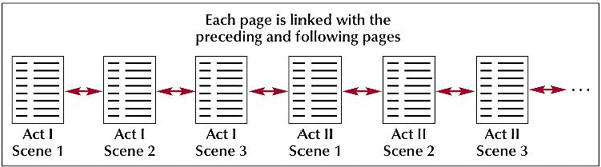
1. Linear Structures - pages are viewed in sequential order.
Any time that you want your visitor to follow a bread crumb trail
through your site you can use linear navigation. This way you can direct them
step-by-step or page-by-page toward whatever goal you have in mind.
There are two types of linear structures:
a) Linear - each page has 2 links: a link to the next page and a link to the previous page.
Example:
b) Augmented Linear - each page has 3 links: a link to the next page, a link to the previous page and a link to the first page in the sequence
Example:

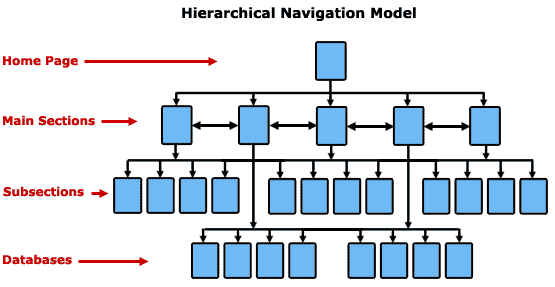
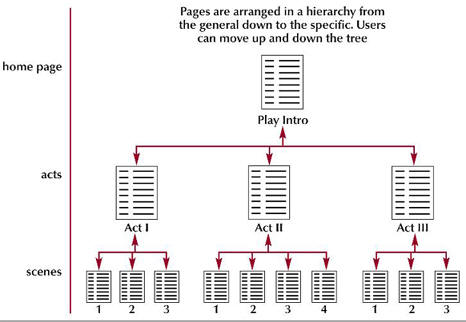
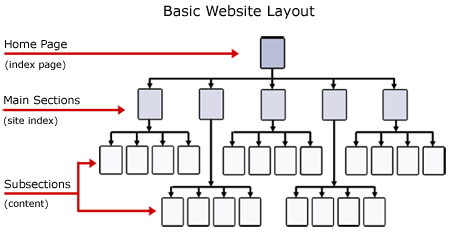
2. Hierarchical Structures - start with a general topic that includes links to more specific topics. Usually includes links back to the top of the structure so users can easily navigate back to the beginning . The goal of any hierarchical/website navigation system is to offer the user a clear and simple way to access all pages in a site easily and to do so quickly from anywhere in the website.
Example #1:
Example #2:
Example #3
3. Mixed Structures - combine linear and hierarchical
Example #1:
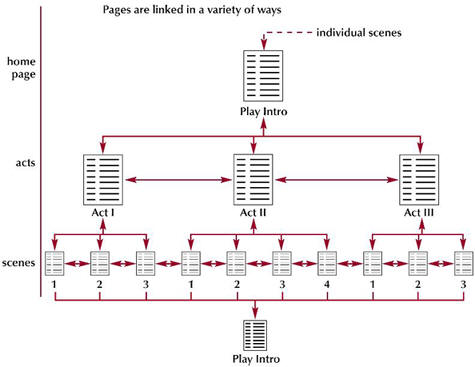
Example #2:

IMPORTANT NOTE: Web search engines can display links to any page at your website (if you have a hierarchy or mixed structure chances are, the search engines will NOT display the first or top page at your site. ) You should keep this in mind when planning your website.
B. Creating External Links to Web Pages
External links are a little easier to create than internal links because you don't need to set an internal ID prior to creating your link. All you have to do is create the link using the HREF attribute.
Syntax:
<a href="web URL">text that displays underlined or image that displays with a colored border</a>
1. Linking to a page in the same directory on the same server
If the page containing the link is going to be stored in the same directory (ie folder) as the destination page, then all you have to enter for the web URL is the file name.
For example, lets say I have a page stored at http://lisabalbach.com/CIT180/Lesson3/lecture.html On this page, I include a link to a page, top-rock.html, that is stored in the same directory (the CIT180/Lesson3 directory). Since both pages are stored in CIT180/Lesson3 AND both are in the lisabalbach.com domain, all I have to key is: <a href="top-rock.html"> The web browser will look at the current location, lisabalbach.com/CIT180/Lesson3 and retrieve the file from that location.
This type of link is called a Relative Link. You are retrieving the page relative to the location of the current page.
The main advantage of relative links is portability - if I decided to move the website to a different server, the link would still work and wouldn't have to be recoded because I am only using the name of the page. The only reason you would have to recode the link would be if the name of the page was changed. NOTE: Coding links this way also allows you to put the pages onto a flash drive where you can pull them up offline and view them (the whole site would work offline as long as you have relative links)
2. Adding links that jump to anchor names on pages located in the same directory
By default, external links display the top of the destination document. There is a way to create a link that will take you to a specific location within another document; however, the document you are linking to must be set up to handle internal links which means different locations in the page need to have the ID attribute specified.
Example:
- Go to task #3 in assignment page
- Go to task #5 in assignment page
Syntax used:
<a href="filename#id">underlined text</A>
Code Example: This example assumes the page containing the link and the page you are linking to are in the same directory.
Go to <a href="top-rock.html#1950">1950's top rock songs</a>.
3. Linking to pages located in different folders at a website
When you load pages into your directory on the Internet, you will organize your files by placing them into different folders.
Example: In your CIT180 directory, you have a Lesson2 and Lesson3 folder. Each week we will be adding folders until you have something that looks like the example shown below:

Each folder contains additional folders, web pages and images. If I wanted to link to a page located within a different folder, then I would have to specify a "path" to the page. (You need to tell the web browser exactly where that page is located).
When linking to your own files stored on the same web server, you should use relative paths.
A Relative paths
A relative path is the file's location in relation to the current web page.
Anytime you are linking to a page stored in the same domain, you should use a relative path
Relative paths do NOT include a domain name and they do NOT include the application protocol (http://).
Many relative paths don't include folder names either (it depends upon where you are linking to). If you omit information in the link's path, the web browser assumes the current domain and current folders.
Relative paths can be specified for files in the same folder as the page you are working on (similar to the example above) or for files in different folders if they are located on the same Internet server.
When you create relative paths, the pages must be located in the same domain (basically, the pages MUST be on the same Internet server). If you want to link to a page in a different domain (ie on a different web server) then you would need to use an absolute link which is described in section B below.
More on creating relative paths:
1) Creating relative paths to files in the same folder is very easy. All you need to do is code <a href="filename.html">text to display</a>
The web browser will fill in the application protocol, the domain name and the folders for you.
Example: <a href="top-rock.html">
The example assumes the file, top-rock.html, is in the same domain and same folder(s) as the page that contains the link.
2) Creating relative paths to files in subfolders is also fairly
easy. All you need to do is specify the folder name followed by a slash
and the file
name.
<a href="foldername/filename.htm">text to display</a>
The web browser will assume that you are starting from the current domain and current folder.
Example: Lets say you are adding links to your assignment page. You want to add a link to the butterfly-garden.html page which is located in the Lesson2 folder. Your assignment page is in the CIT180 folder. To create the link, you need to tell the web browser to open the Lesson2 folder and display butterfly-garden.html
<a href="Lesson2/butterfly-garden.html">Butterfly Garden</a>
3) Creating relative paths to files that are in different folders, but not subfolders.
This can be a little bit tricky. You need to have a good sense of where the current page is within the file and folder structure.
To navigate upward, you must use two periods .. followed by a slash / The ../ is used in place of a folder name. Each time you want to go up 1 level, you need to enter ../
To navigate down, you just insert the folder name followed by a slash (as explained above).
Example : The current page, top-rock.html is located inside the CIT180/Lesson3 folder. Creating a relative link to the assignments.html page requires going up 1 level (from CIT180/Lesson3 up to CIT180) and then specifying the assignments.html page. The relative link would look like this: <a href="../assignments.html">Assignment Page</a>
When trying to workthrough relative links it is easier if you visualize how the folder system is set up - jotting down the folders and files within them in a tree like hierachy is helpful (see below)

To link from top-navigation in the lesson2 folder to top-rock.html in the lesson3 folder, you would need to enter ../ to go up 1 level from Lesson2 to CIT180. From the CIT180 folder, you would need to open Lesson3 and specify top-rock.html as the page you want to view.
Your relative link would look like this: <a href="../Lesson3/top-rock.html>Top Rock Songs</a>
Question: How would you link from top-navigation to rock-n-roll.jpg?
Answer: <a href="../Lesson3/media/rock-n-roll.jpg">Rock and Roll graphic</a>
A. Absolute paths
Specifically state the location of the web page by including the entire web address. IMPORTANT: This method is NOT flexible and should NOT be used unless you are linking to a page located on a completely different server.
A web address has 3 distinct parts:
1. application protocol - for web pages it is https://
2. hostname - name of the computer storing the web page (it is the text that comes after https://)
3. path and filename - includes all folders the web browser needs to look in to find the specified page AND it includes the name of the page.
In an absolute link, you include all 3 parts of the web address (or URL) in the link.
Example of an absolute address: https://lisabalbach.com/CIT180/index.html
https:// is the application protocol
lisabalbach.com/ is the hostname or domain
CIT180 is a folder on the server
index.html is the name of the page being displayed.
Example of an absolute link to this address:
<a href="https://lisabalbach.com/CIT180/index.html">CIT180 Course Page</a>
Advantage of using this method: You have total control over the destination link and the location of the link is self-documenting.
BIG Disadvantage of using this method: You don't control the page you are linking to. Pages get moved to different servers, directories etc all the time and when that happens, your link won't work. If you are linking to resources, it is a good idea to include several external links, that way, if one doesn't work, the person viewing the page has other options.
NOTE: Make sure you use the correct upper/lower case letters - URL's are case sensitive on some Internet servers.
C. Linking to Other Media
So far, we have been linking to web pages. You can also create links to a wide variety of files such as pictures, Word documents, pdf files, Excel spreadsheets, PowerPoint presentations, flash files etc.
Creating links to other types of Internet objects involves the same process as creating links to web pages - in order to create the link, you have to know the URL. If the media is in one of your directories and is in the same domain as the web page, you should use a relative link. If the media is in a different domain, then you need to use an absolute link.
Syntax:
<a href="URL of object">underlined text</a>
1. Linking to Google Groups (i.e. Newsgroups)
Newsgroups are discussion lists formed around very specific topics. Members of a group post questions and other members post answers. These questions and answers can be viewed online and you can also elect to have them emailed to you.
Google has a "group" section that lets you access web-based newsgroups ( https://support.google.com/groups/community?hl=en). You can create links to the google newsgroups by keying in an absolute address to the newsgroup site (see below):
Example:
<a href="https://groups.google.com/g/misc.fitness.aerobic">Aerobic exercise newsgroup</a>
Try out the link below:
2. Creating links to files that aren't web pages
You can create a link to any type of file you have on your computer system. In order for the link to work, the file must be transferred to the Internet and the person using the link must have the correct software. If you create a link to a Word document, the person selecting the link must have Microsoft Word on their computer system. If you create a link to a PowerPoint presentation, the person must have PowerPoint on their computer system.
If you are linking to one of your own files, you should create a relative link:
Example #1 linking to PowerPoint:
<a href="pbj2016.ppt">How to Make a PBJ Sandwich (PowerPoint 2016)</a>
Try it Out (in order for you to see the presentation, you need PowerPoint 2016)
How to Make a PBJ Sandwich (pptx file)
Example #2 linking to a text file:
<a href="jabberwocky.txt">Lewis Carroll's Jabberwocky</a>
Try it Out (this should display in NotePad - any computer user should be able to open this)
Lewis Carroll's Jabberwocky
If you are linking to a file located on a completely different server, then you need to code an absolute link.
Example linking to a WordPress website:
<a href="https://lisabalbach.wordpress.com/">Through the Looking Glass</a>
Try it Out (it should display as a web page)
Through the Looking Glass
If you are linking to social media, you will need to use an absolute link.
Example linking to a Pinterest site:
<a href="https://www.pinterest.com/lisabalbach/">Lisa Balbach on Pinterest</a>
Try it Out
If you are linking to an image file, you would use a relative address if the file is on the same server and an absolute address if the file is on a different server.
Example 1 - linking to an image file on the same server:
<a href="media/rock-n-roll.jpg">Rock and Roll graphic</a>
Try It Out: Rock and Roll graphic

Example 2 - linking to an image file on a different server:
<a href="https://lisabalbach.wordpress.com/digital-artwork-and-fine-art-photography/high-contrast-photography/#jp-carousel-617">Here's looking at you kid</a>
Try It Out: Here's looking at you kid
or
<a href="https://www.flickr.com/photos/lisabalbach/">Lisa Balbach's Flickr Images</a>
Try It Out: Lisa Balbach's Flickr Images
3. Creating e-mail links
You can create an e-mail link that will display the web browser's default mail window with your e-mail address already filled in (all the user has to do is enter the subject and the body of the message). THESE LINKS ONLY WORK if you have an email client configured like Outlook, Windows Mail, Outlook Express etc. If you use an Internet-based email program, like gmail, and you don't have a client configured, the mail links won't work unless you are logged into your internet-based email.
The URL for an e-mail address always begins with mailto: in place of http://
<a href="mailto:lbalbach@nmc.edu">Email Lisa Balbach</a>
Try It Out
Email Lisa Balbach (This should display the email window from your default client software program. If you haven't configured a client program, the default client will appear asking you to configure the program so you can send email).
4. Using the Title Attribute in links
The title attribute specifies extra information about an element. The information is most often shown as tooltip text when the mouse moves over the element. To see the tooltip, you need to view the page in the web browser.
Syntax:
<a href="url" title="text you want to display when the mouse passes over the link">text displayed as a link</a>
Example:
Code used:
<a href="https:/lisabalbach.com" title="Lisa Balbach's Home Page">Home Page</a>
You can use the tipbox for a description or you can provide directions to the user such as - click the link to see the page.
Example:
Code used:
<a href="https://lisabalbach.com" title="Click on the link to see the page">Lisa Balbach's Home Page</a>
III. HTML Comments
HTML comments are used to document your page, hide content you don't want to display yet and to debug code.
Comments are NOT displayed by the web browser.
Syntax: <!-- enter your comments or code you want to hide -->
Most web editors will display comments in green, so you can visually identify them.
Comments can be on a single line or multiple lines. They begin with <!-- and end when you enter --> Anything inbetween is treated as a comment
Example of link code commented out:
